
4.2 OPS
4.2.1 Navigate to OPS settings
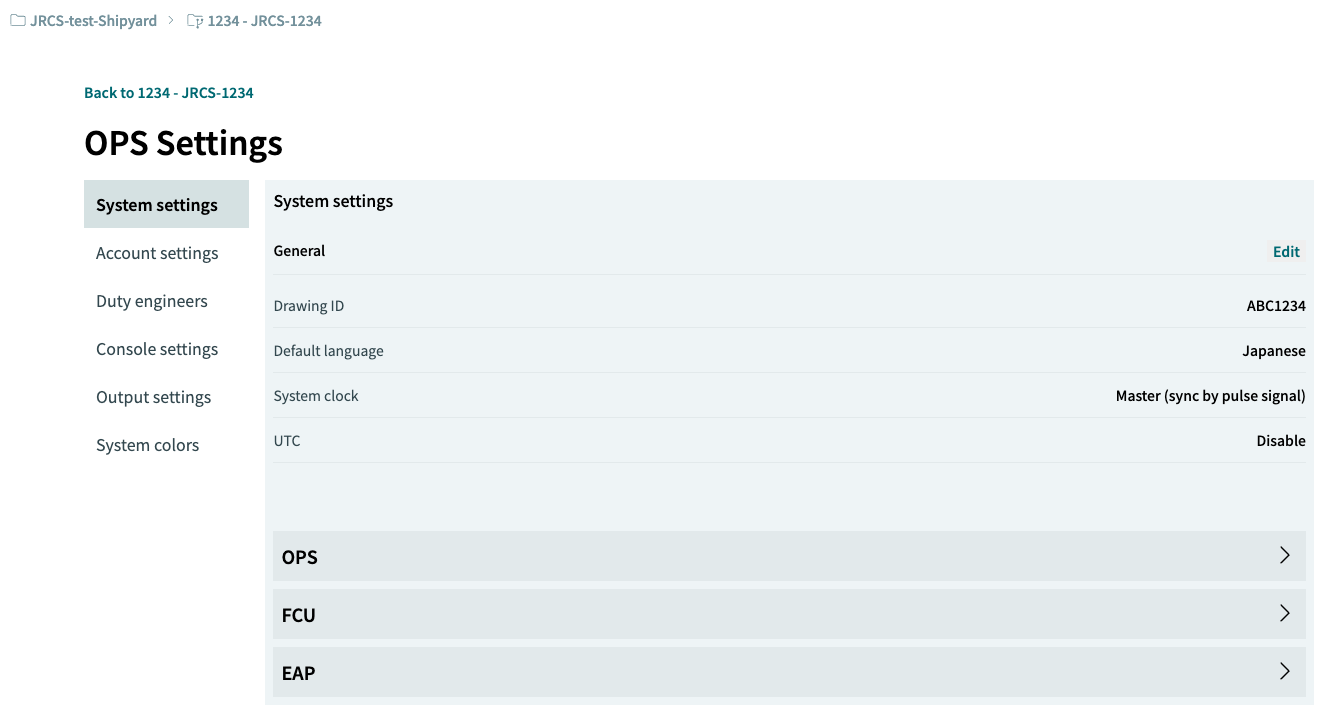
Navigate to the OPS settings section by clicking the [ > ] button next to OPS under System settings.
4.2.2 Select the OPS to edit
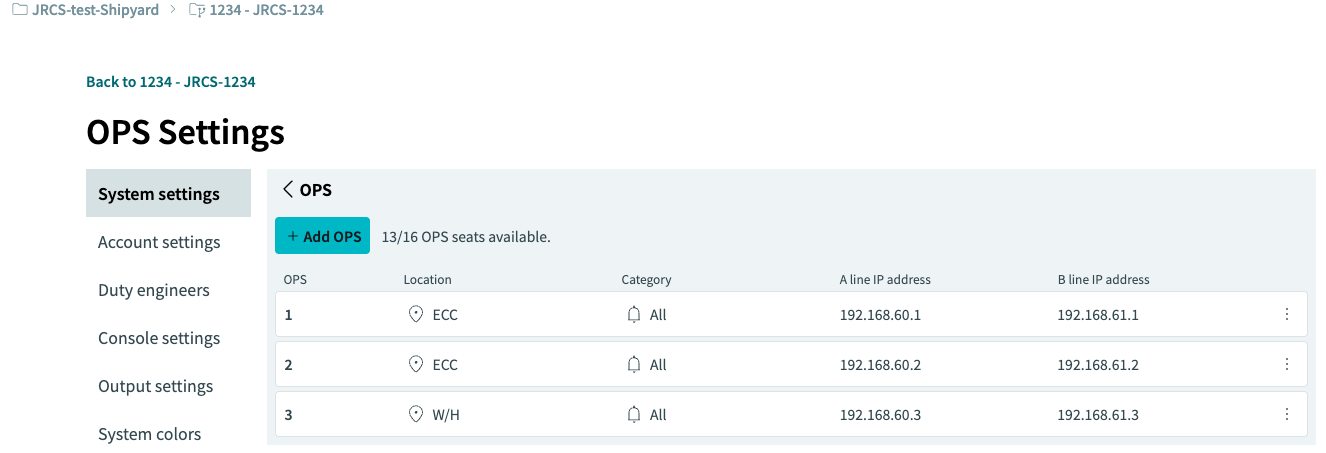
Perform [ Edit / Duplicate / Delete ] actions using the three-dot […] button for the specific OPS.

4.2.4 Edit OPS
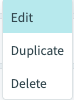
Use this to edit the selected OPS.
Select [Edit] from the three-dot […] button for the specific OPS.
4.2.5 Duplicate OPS

Use this to copy the selected OPS.
Select [Duplicate] from the three-dot […] button.
4.2.6 Delete OPS
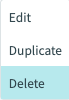
Use this to delete the selected OPS.
Select [Delete] from the three-dot […] button.
|
4.2.7 OPS information
Displayed when editing the selected OPS. Configure the following items for each OPS unit.
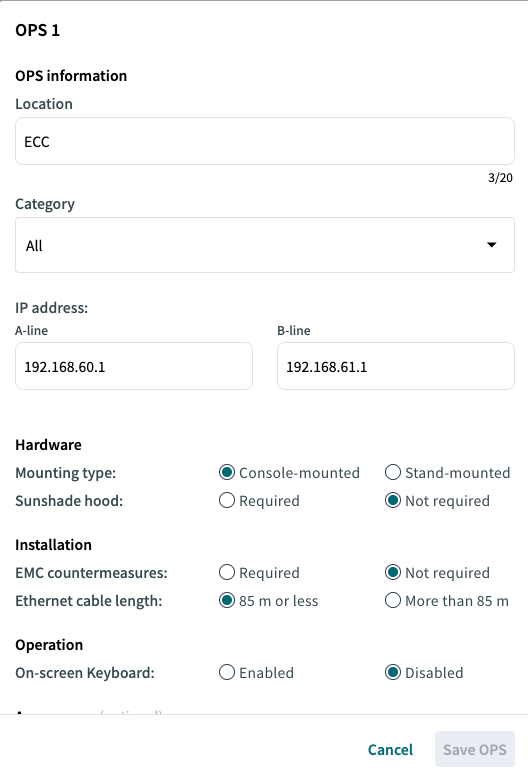
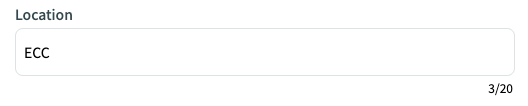
b) Category
Select the category (part setting): [ALL / MACHINERY / SYSTEM].
Category settings are configured within the channel settings.

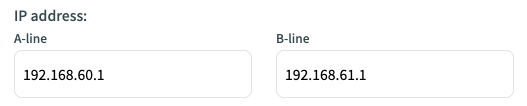
c) IP address:
Enter the OPS IP address (System A/System B). Use this field only if the IP address does not update automatically after a delete or duplicate operation. Generally, editing the IP address is not required.


i) Ethernet cable length:
Select whether the Ethernet cable length exceeds 85m. - 85m or less - More than 85m

.png)
