Procedure - DO settings

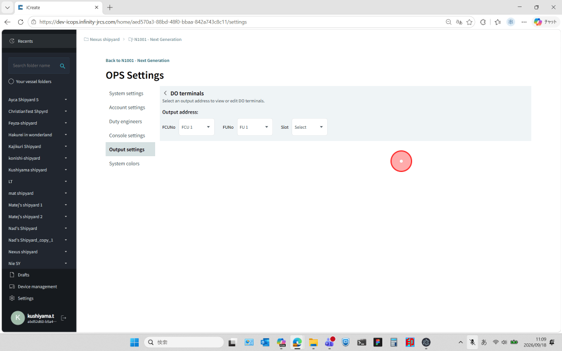
1. DO board slot selection

Select the I/O board to which the DO settings will be applied. Select the FCU No., FU No., and Slot No. from the corresponding drop-down lists.

To select an I/O board installed in an FCU, choose "No Selection" from the FU No. drop-down list.

select location

2. The terminal list for the selected slot

Click ">" at the far right of the row corresponding to the terminal you want to configure.
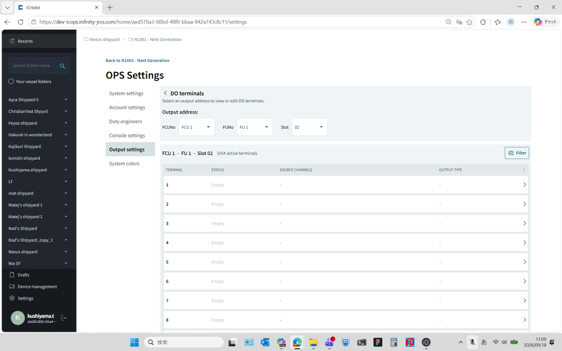
display do terminal list

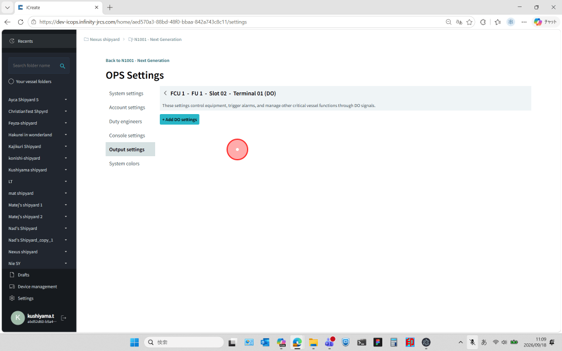
3. Start DO Settings

Click "+ Add DO Settings". The configuration dialog is displayed.

click on specific terminal

4. Output Signal Type selection

Select the Output Signal Type.
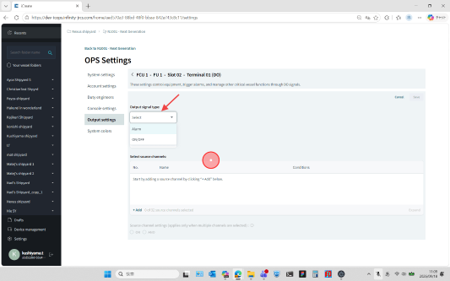
select output signal

Output Signal Type

Type

Description

Alarm

When the trigger condition is met, the output blinks. When the alarm buzzer is silenced, the output changes from blinking to steady ON. When the trigger condition is no longer met, the output turns OFF.

This output type is typically used when the output is connected to an alarm indicator lamp on a control panel.

On/Off

When the trigger condition is met, the output turns ON. When the trigger condition is no longer met, the output turns OFF.

5. Output Mode selection

Select the Output Mode.
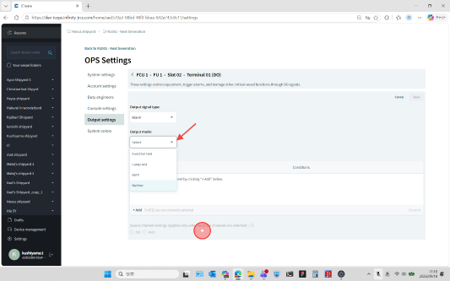
select output mode

Output mode

Mode

Description

Function test

Work in Function Test Mode.

Lamp test

Work in Lamp Test Mode.

Both

Work in both Function Test and Lamp Test Modes.

Neither

Work in neither Function Test nor Lamp Test Modes.

6. Start source Channel selection

Add the channels that will act as output triggers. Click "+ Add" at the bottom of the list.
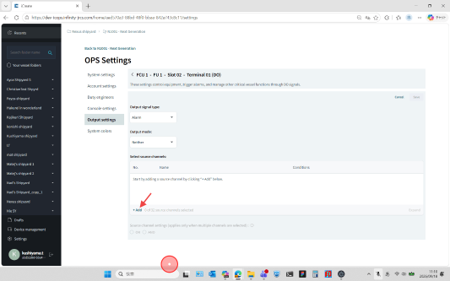
click on add source channel

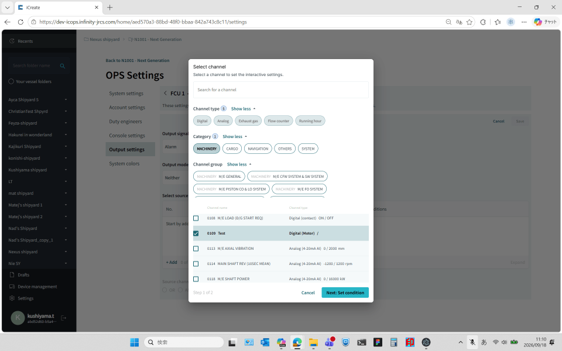
7. channel condition selection

Select the trigger channel and the channel condition.

select source channel

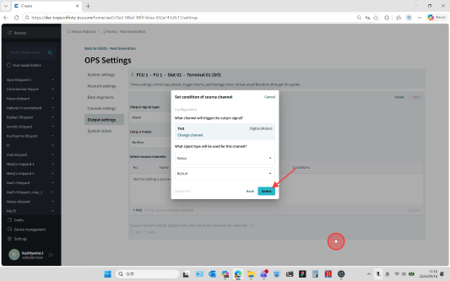
8. Complete the channel selection

Click "Select".

click on select button

9. Updated source channel list

The setting is then added to the list.

added source channel setting

10. Continue adding source channels (optional)

To use multiple channels as combined trigger conditions, click "+ Add" again and add the additional channels.

11. OR / AND (optional)

If multiple source channels are configured, specify whether the output is activated when any of the configured channel conditions are met (OR) or only when all configured channel conditions are met (AND).
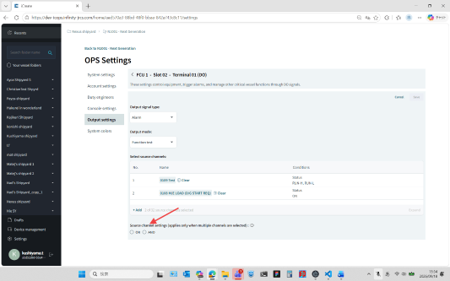
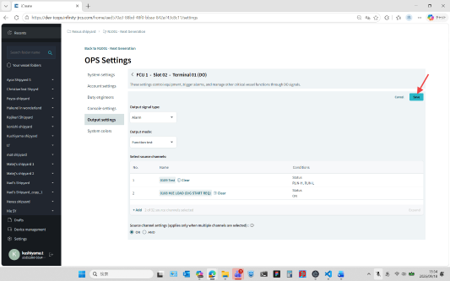
select or and

12. Save the settings

Click "Save" to save the settings.

click on save

Delete a source channel setting

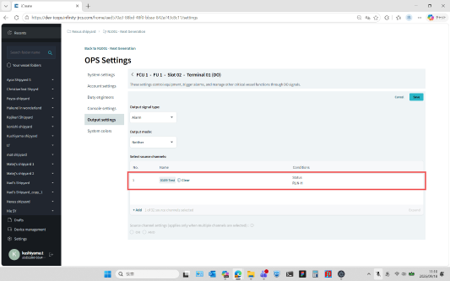
To delete an source channel setting, click "Clear" in the row corresponding to the terminal.
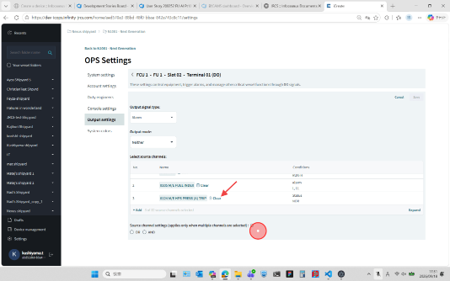
click on clear

A confirmation dialog is displayed. Click "Confirm" to proceed.
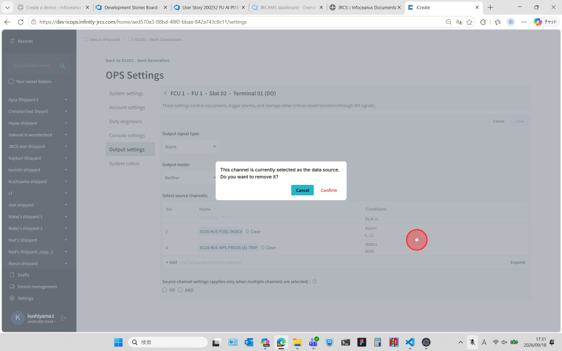
confirm clear one

Delete an output setting

To delete an output setting, click "Delete".

click on delete

A confirmation dialog is displayed. Click "Confirm" to proceed.
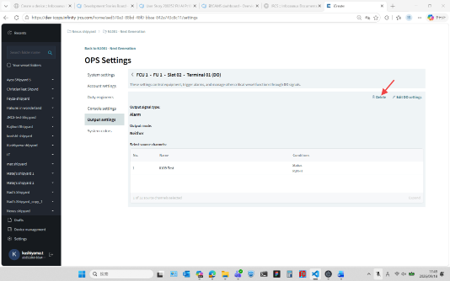
confirm delete output

Expand / Collapse the source channel list

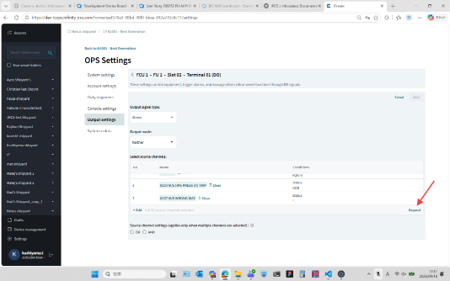
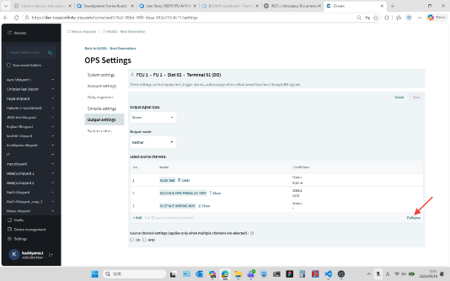
To expand or collapse the source channel list, click the "Expand" or "Collapse" icon next to the list.

click on expand
click on collapse