
Library
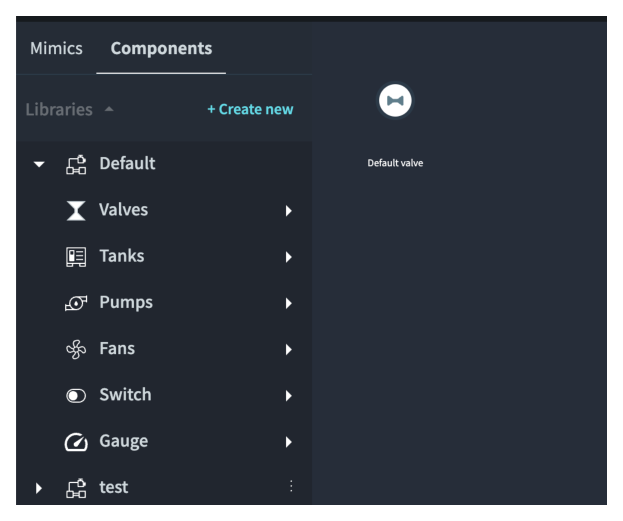
The Components tab displays the component libraries of the vessel. A component is a group of objects that is registered in a library and is placed on more than one mimic. Components are organized into libraries, and each library is divided into categories.
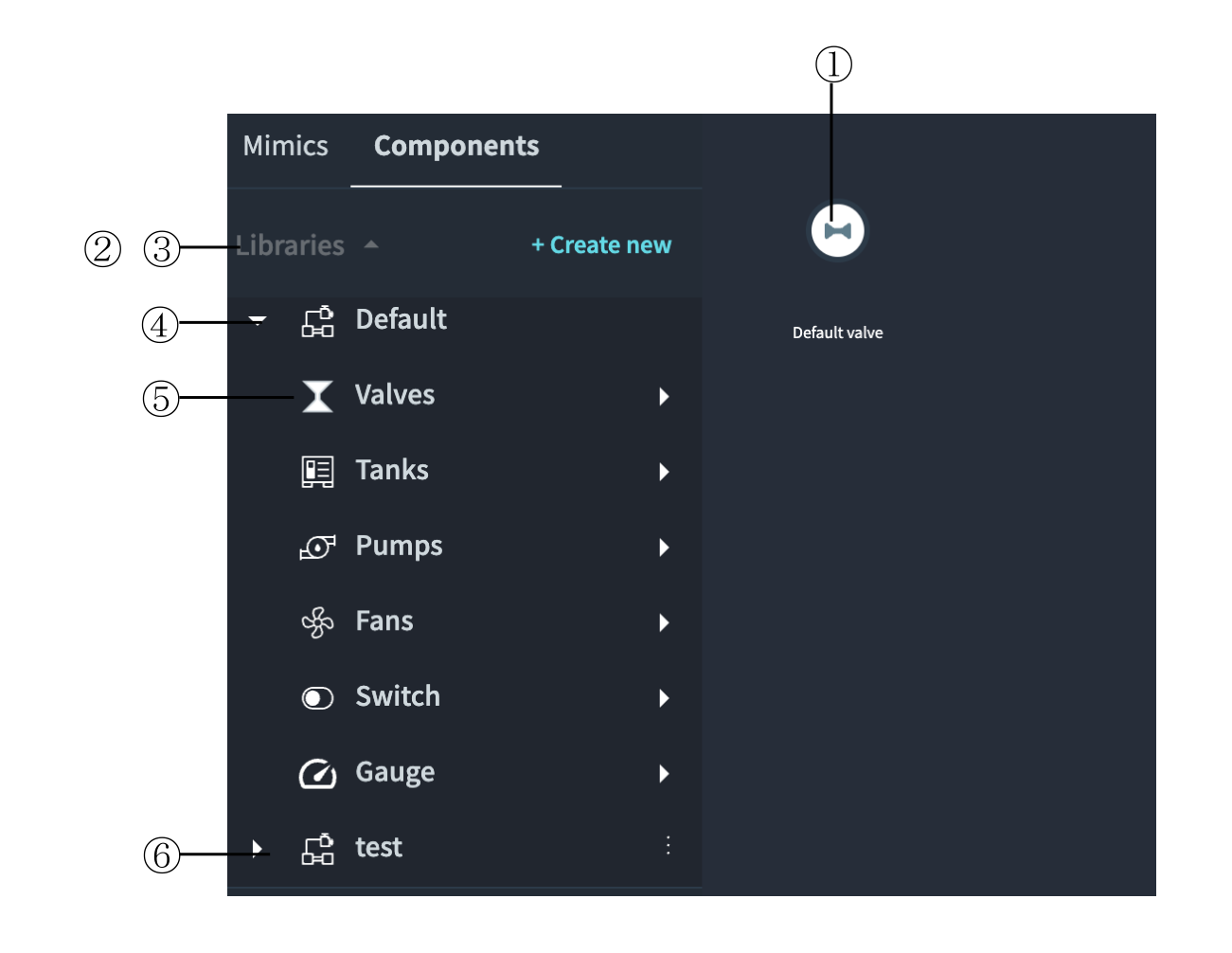
| No | Item | Description |
|---|---|---|
① |
Libraries |
Title of the component list |
② |
[+ Create new] button |
Button that creates a library |
③ |
Default |
Library that contains the components provided by the system |
④ |
Library name |
Name of a library created by the user |
⑤ |
Category name |
Name of a category in the library |
⑥ |
Option icon |
Icon that displays the option menu of the library |
The Default library contains the following categories.
| No | Category | Description |
|---|---|---|
① |
Valves |
Valve components |
② |
Tanks |
Tank components |
③ |
Pumps |
Pump components |
④ |
Fans |
Fan components |
⑤ |
Switch |
Switch components |
⑥ |
Gauge |
Gauge components |
|
The components of the Default library cannot be edited or deleted. |
Displaying the Components Tab
-
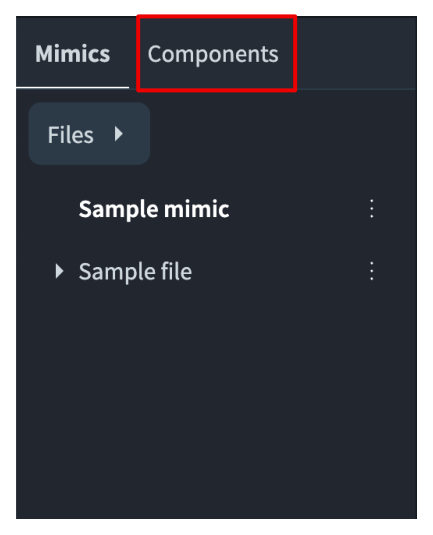
Touch the Components tab.
The list of the libraries is displayed.
-
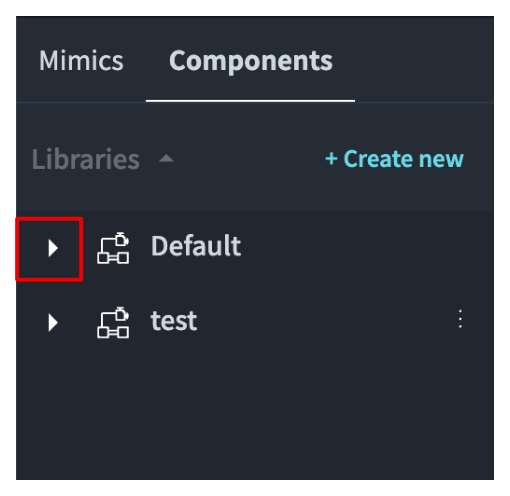
Touch the expand icon of the library.
The categories of the library are displayed.
-
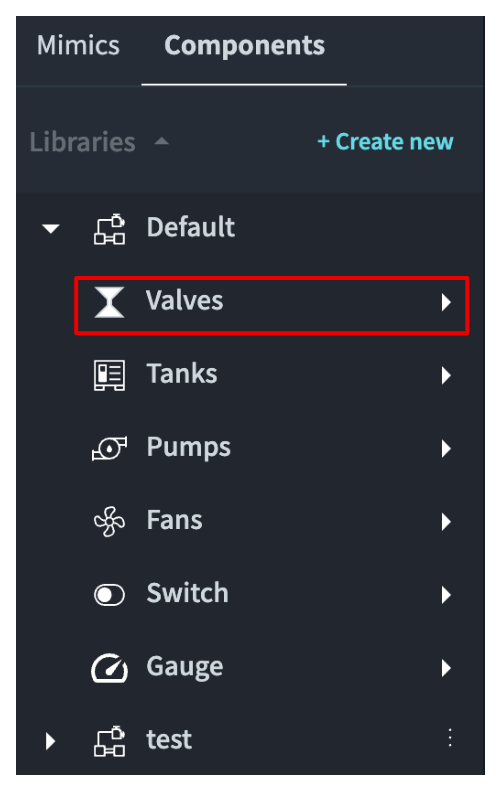
Select the category.
The component list of the category appears.
Creating a Library
-
Touch the Components tab.
-
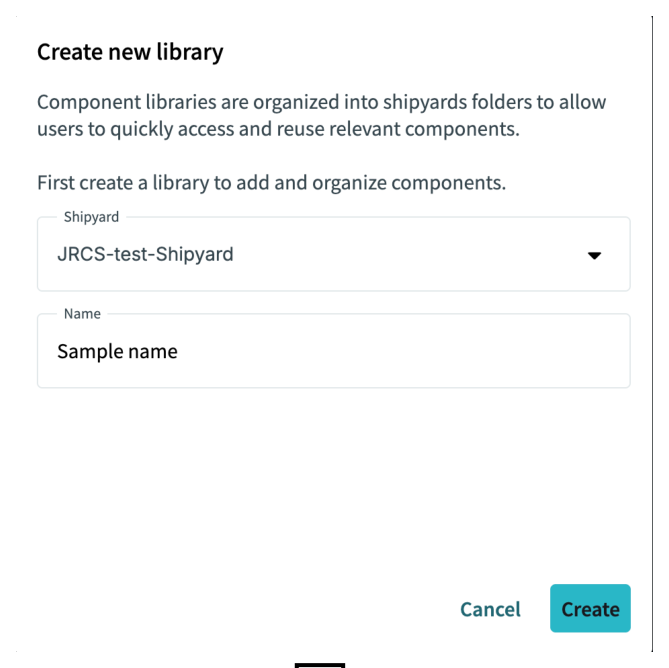
Touch the [+ Create new] button.
The Create new library window appears.
-
Select the shipyard in Shipyard.
-
Enter the name of the library in Name.
-
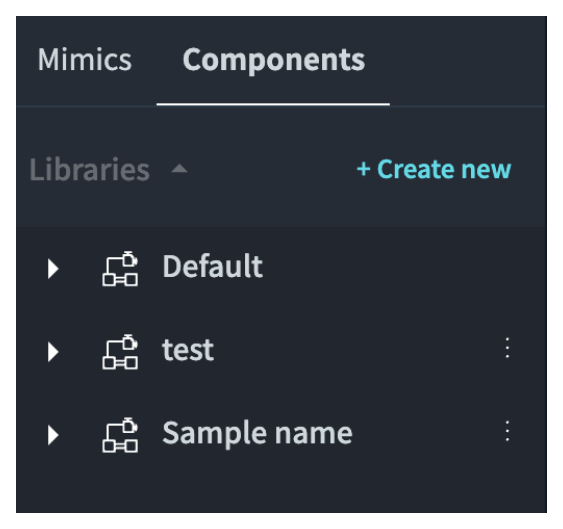
Touch the [Create] button.
The library is created.
|
Component libraries are organized into shipyard folders. |
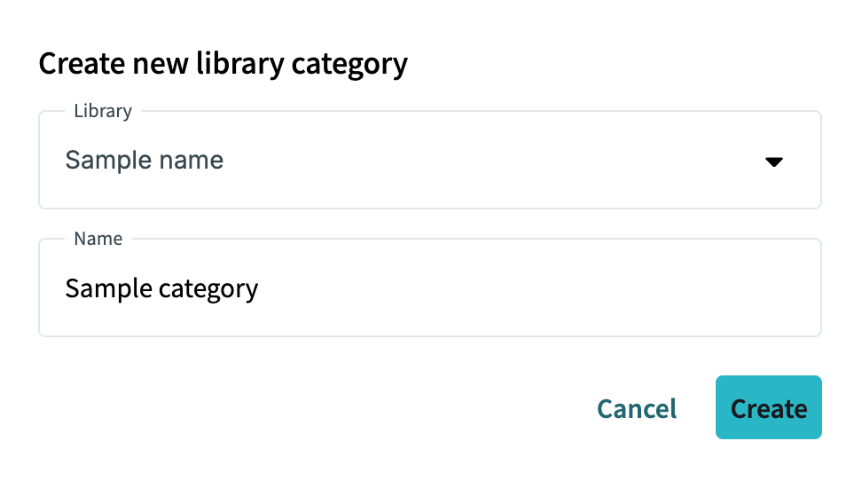
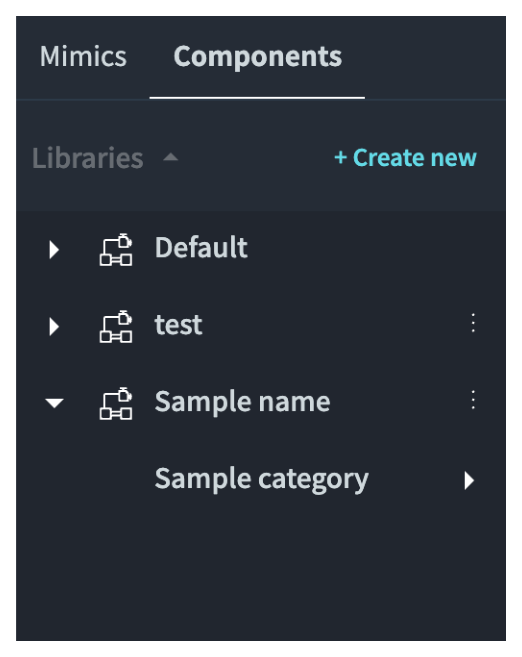
Creating a Category
-
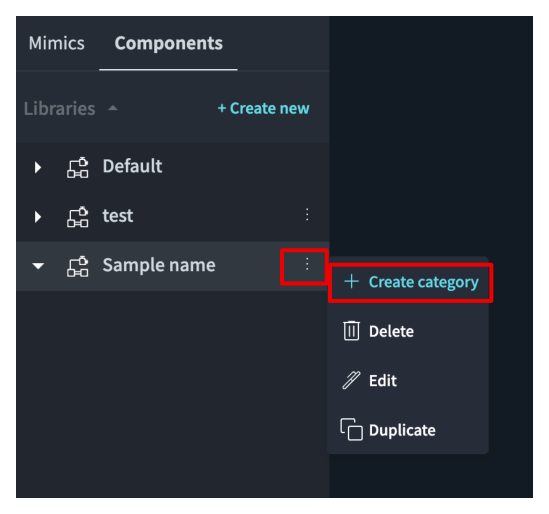
Touch the option icon of the library.
The option menu appears.
-
Select [Create category].
The Create new library category window appears.
-
Enter the name of the category in Name.
-
Touch the [Create] button.
The category is created in the library.
Registering a Component in a Library
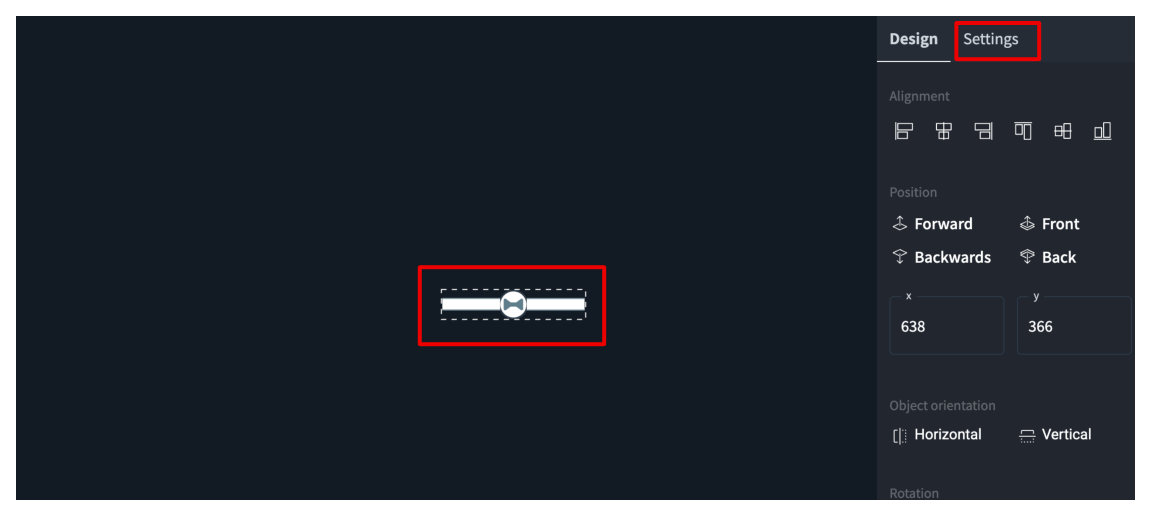
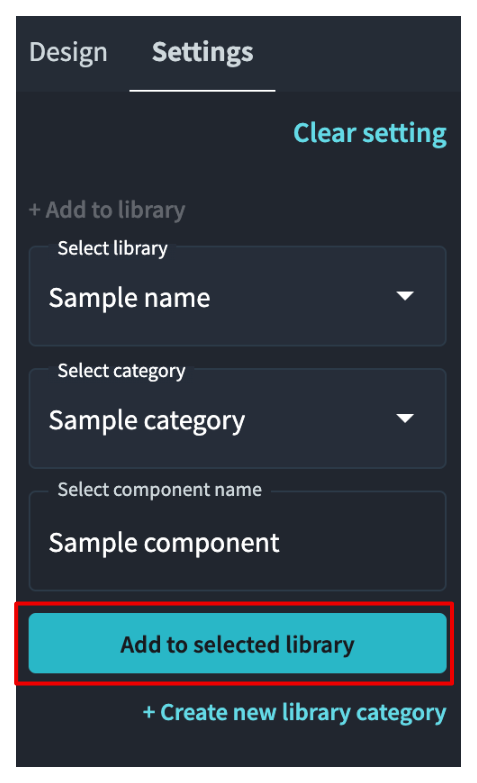
This function is used to register the objects on a mimic as a component.
-
Select the objects on the canvas.
-
Touch the Settings tab of the side menu.
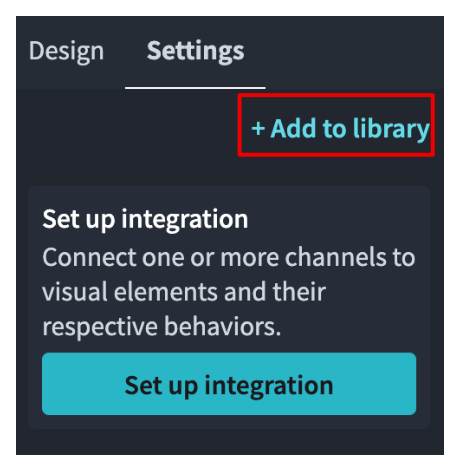
-
Touch [+ Add to library].
The library selection area appears.
-
Select the library in Select library.
-
Select the category in Select category.
-
Enter the name of the component in Select component name.
-
Touch the [Add to selected library] button.
The component is registered in the selected library.
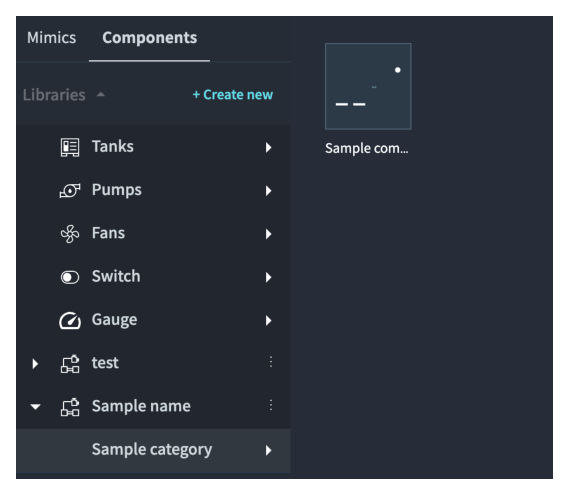
|
To create a category at this point, touch [+ Create new library category]. |
Placing a Component on a Mimic
-
Open the mimic on which the component is placed.
-
Touch the Components tab.
-
Select the category that contains the component.
The component list appears.
-
Select the component, and then select [Add to canvas].
The component is placed on the canvas.
-
Touch the [Save mimic] button.
The mimic is saved.
Editing a Library
-
Touch the option icon of the library.
-
Select [Edit].
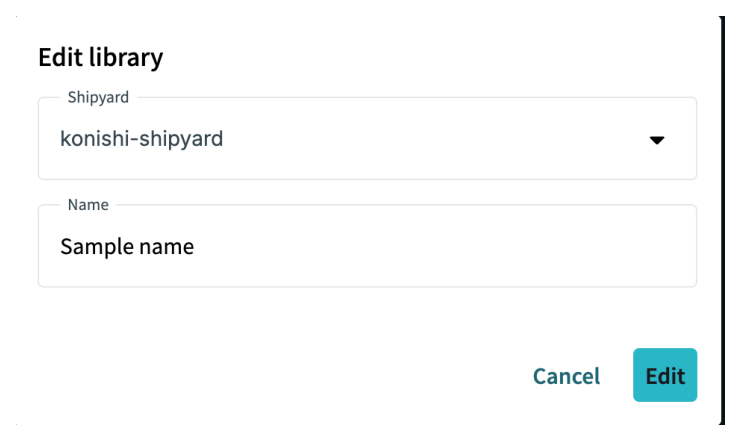
The Edit library window appears.
-
Change the shipyard and the name.
-
Touch the [Edit] button.
The library is changed.
Duplicating a Library
-
Touch the option icon of the library.
-
Select [Duplicate].
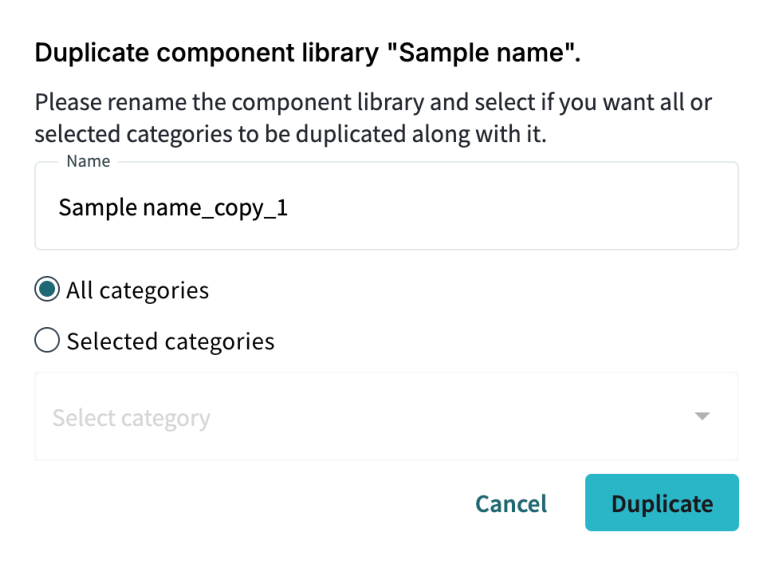
The Duplicate component library window appears.
-
Enter the name of the new library.
-
Select [All categories] or [Selected categories].
-
Touch the [Duplicate] button.
The library is duplicated.
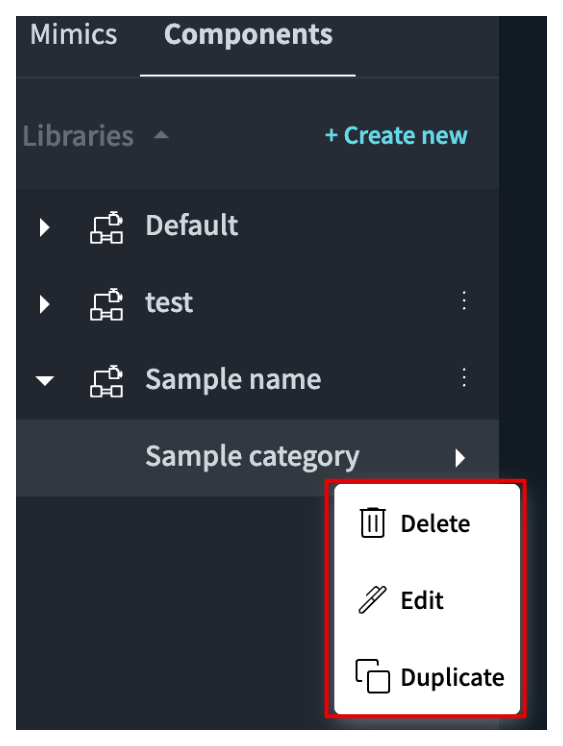
Editing and Deleting a Category
-
Display the categories of the library.
-
Touch and hold the category, or right-click the category.
The option menu appears.
-
Select [Delete], [Edit], or [Duplicate].
The selected operation is performed.
Deleting a Library or a Component
-
Touch the option icon of the library, or select the component in the component list.
-
Select [Delete].
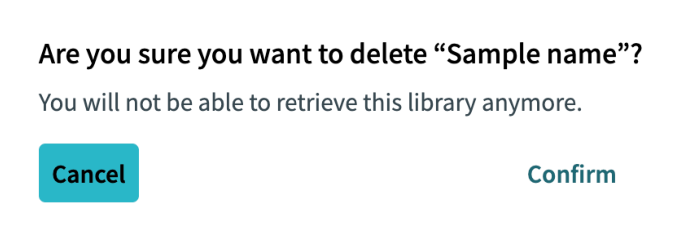
The confirmation window appears.
-
Confirm the name, and then touch the delete button.
The library or the component is deleted.
|
A deleted library, category, or component cannot be restored. |