
Folder Creation
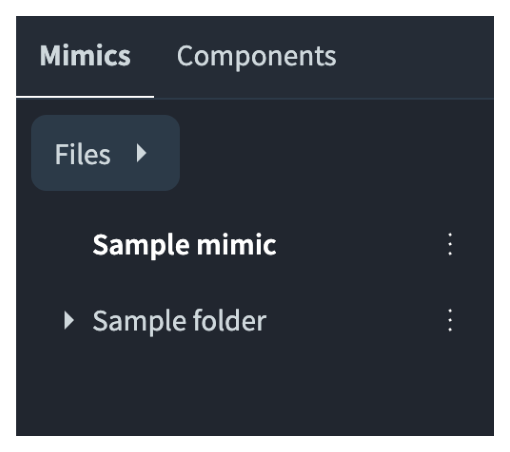
Mimic folders are used to group mimics in the Mimics tab. A folder contains mimics. A folder cannot contain another folder. Folders and mimics are operated from the [Files] button and from the option icon.
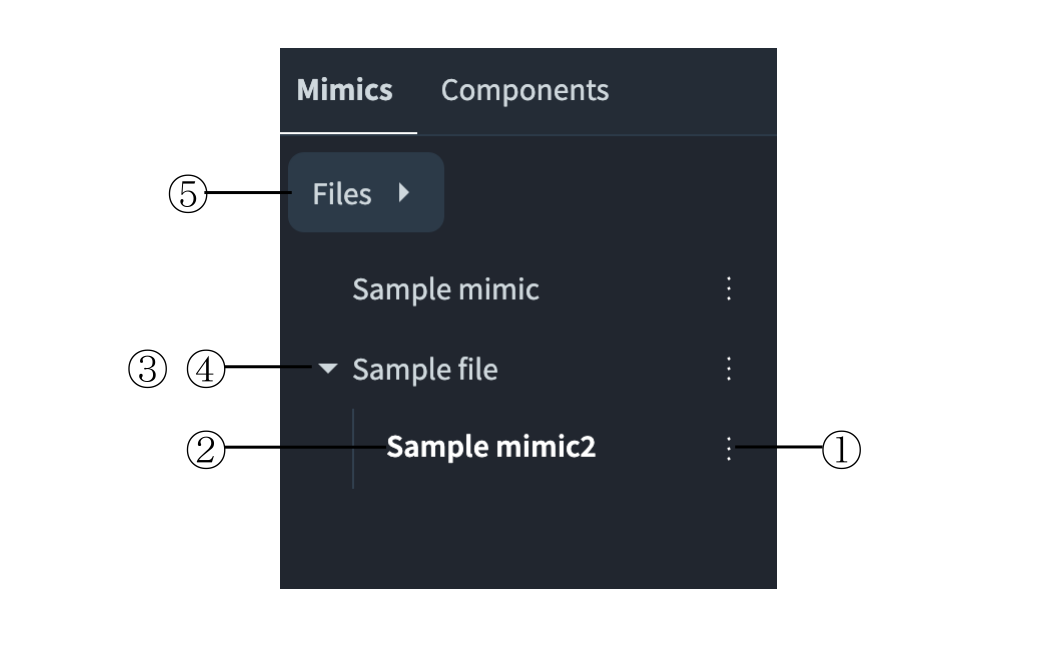
| No | Item | Description |
|---|---|---|
① |
[Files] button |
Button that displays the file option menu |
② |
Expand icon |
Icon that displays and hides the mimics in the folder |
③ |
Folder name |
Name of the mimic folder |
④ |
Mimic name |
Name of the mimic |
⑤ |
Option icon |
Icon that displays the option menu of the folder or of the mimic |
|
Edit access to the vessel is required to create, change, or delete a folder. |
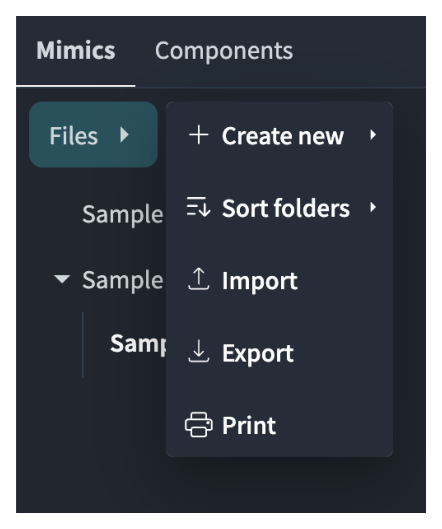
| Item | Description |
|---|---|
Create new |
Creates a folder or a mimic ([Folder], [Mimic], or [Convert PDF to mimic]) |
Sort folders |
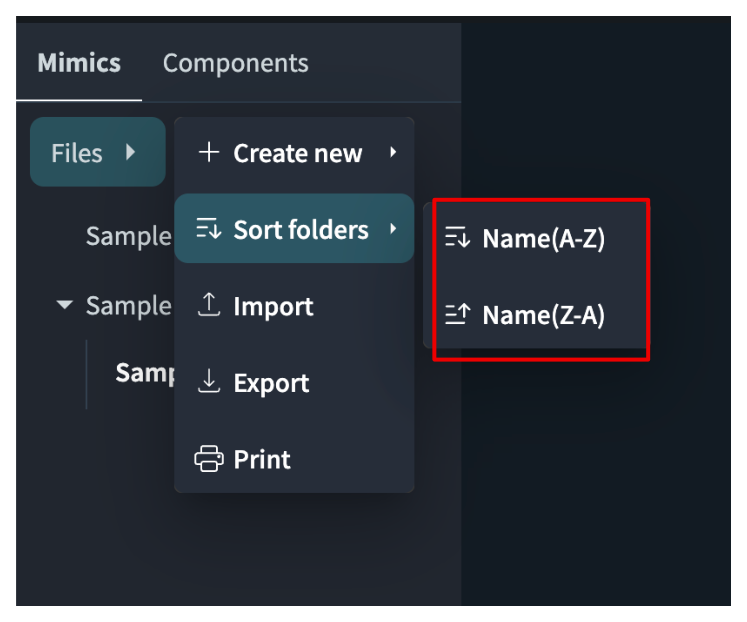
Sorts the folders by name ([Name(A-Z)] or [Name(Z-A)]) |
Import |
Imports mimic data |
Export |
Exports mimic data |
Prints all the mimics |
| Menu | Items |
|---|---|
Folder |
Create mimic, Move up, Move down, Rename, Delete, Duplicate |
Mimic |
Move mimic (Move to folder, Move up, Move down), Duplicate, Delete, Import, Export, Print |
Creating a Folder
-
Touch the [Files] button.
The file option menu appears.
-
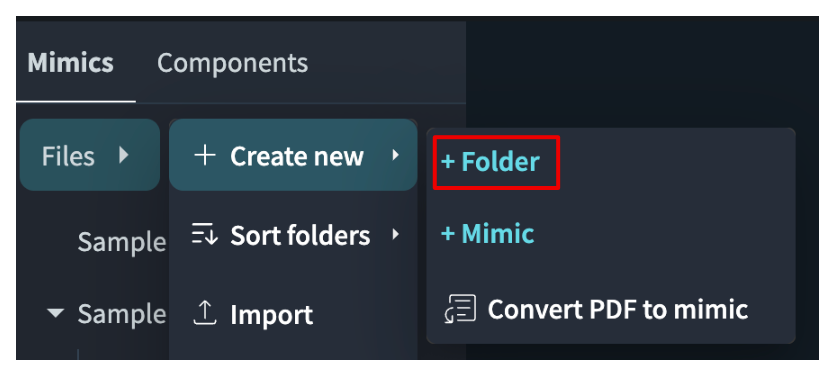
Select [Create new], and then select [Folder].
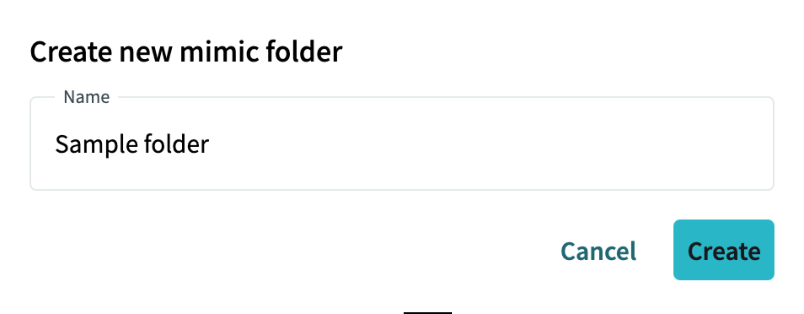
The Create new mimic folder window appears.
-
Enter the name of the folder in Name.
-
Touch the [Create] button.
The folder is created in the Mimics tab.
|
When the entered name is already used, the message "A folder already has that name." is displayed. |
Creating a Mimic in a Folder
-
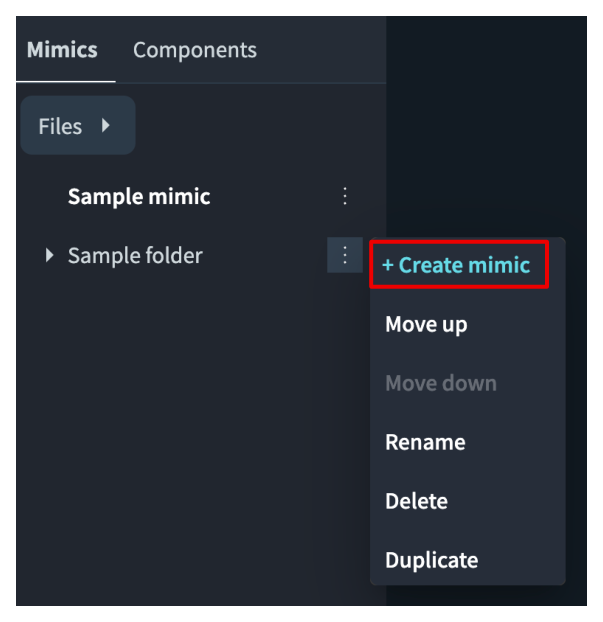
Touch the option icon of the folder.
The option menu appears.
-
Select [Create mimic].
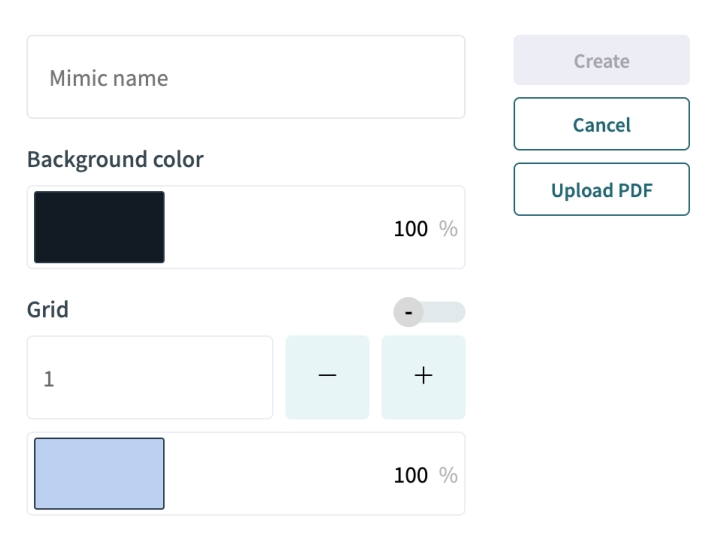
The New mimic window appears.
-
Enter the name of the mimic in Mimic name.
-
Touch the [Create] button.
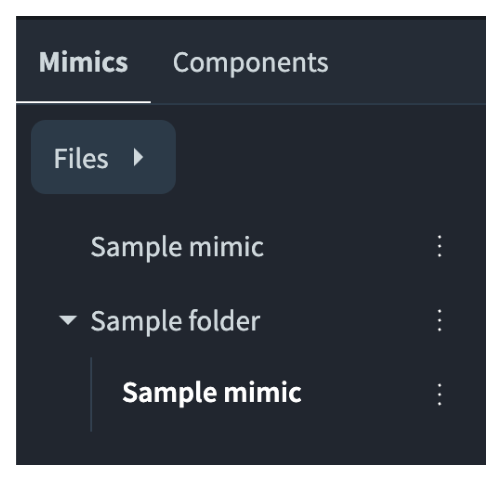
The mimic is created in the folder.
Displaying the Mimics in a Folder
Touch the expand icon of the folder. The mimics in the folder are displayed.
Touch the expand icon again. The mimics in the folder are hidden.
Renaming a Folder
-
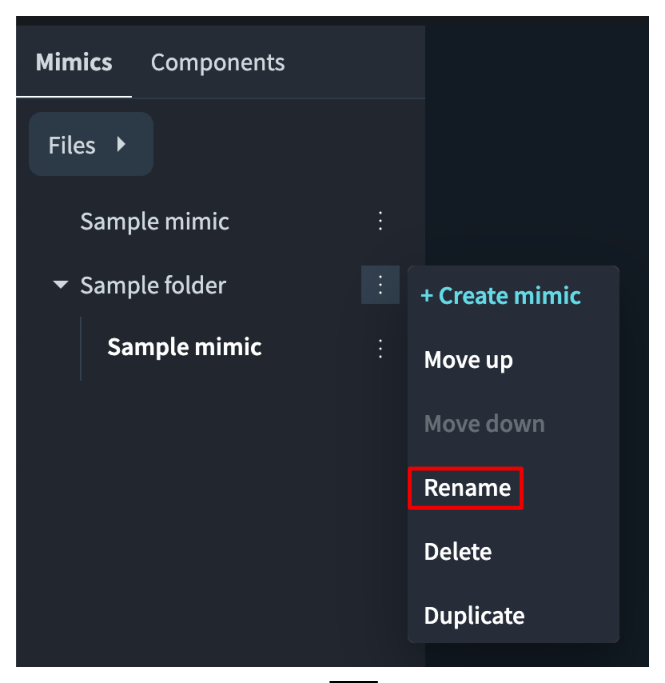
Touch the option icon of the folder.
-
Select [Rename].
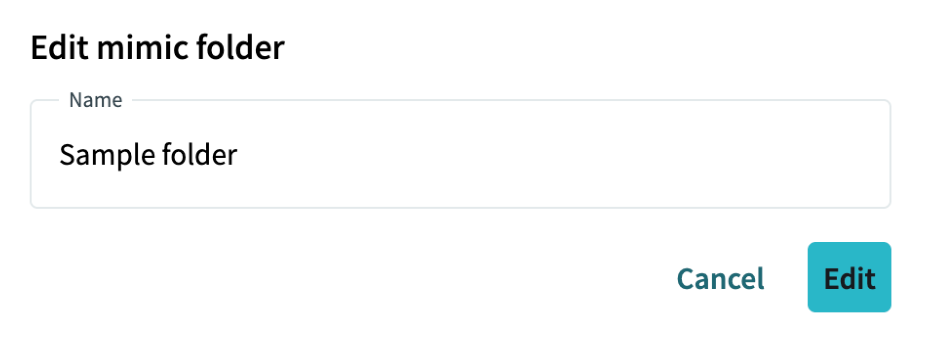
The Edit mimic folder window appears.
-
Enter the new name in Name.
-
Touch the [Edit] button.
The folder name is changed.
Changing the Display Order of a Folder
-
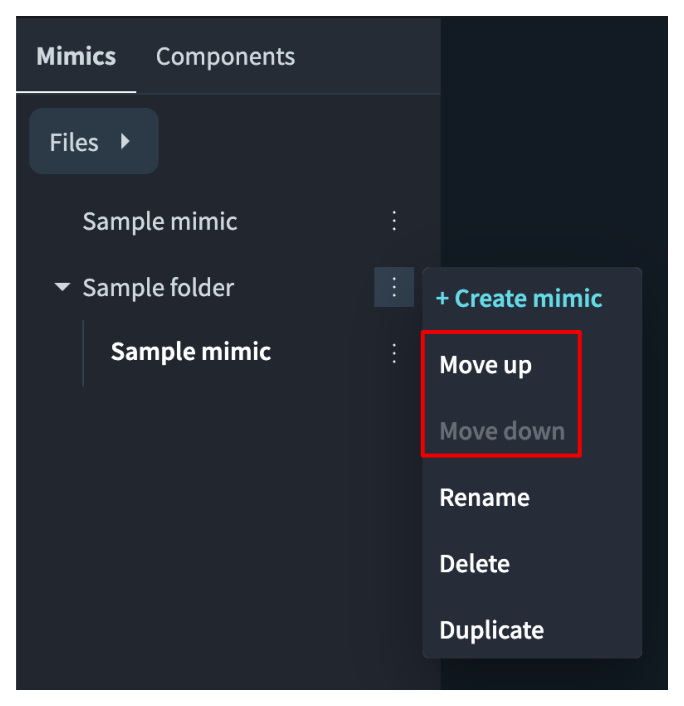
Touch the option icon of the folder.
-
Select [Move up] or [Move down].
The folder moves one position up or down.
|
[Move up] is disabled for the first item, and [Move down] is disabled for the last item. |
Sorting the Folders
-
Touch the [Files] button.
-
Select [Sort folders], and then select [Name(A-Z)] or [Name(Z-A)].
The folders are sorted by name.
Moving a Mimic to a Folder
-
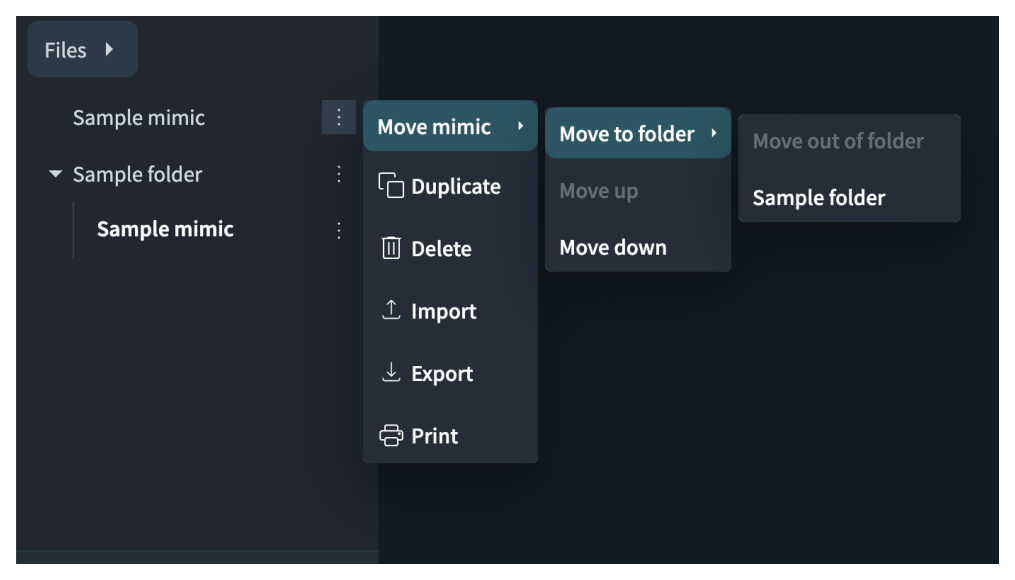
Touch the option icon of the mimic.
The option menu appears.
-
Select [Move mimic], and then select [Move to folder].
The list of the folders appears.
-
Select the destination folder.
The mimic is moved to the selected folder.
|
When a mimic of the same name exists in the destination folder, the message "A mimic with the same name already exists in the destination folder." is displayed. |
Moving a Mimic Out of a Folder
-
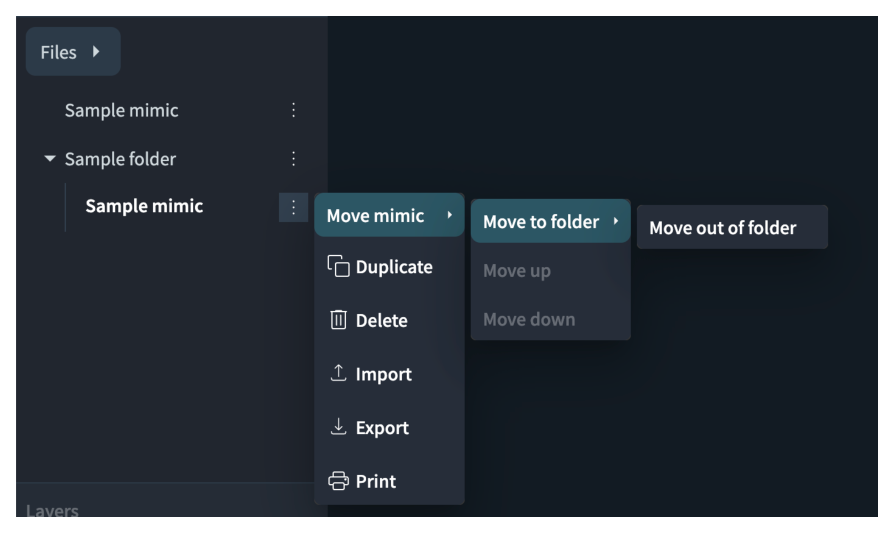
Touch the option icon of the mimic.
-
Select [Move mimic], and then select [Move out of folder].
The mimic is moved out of the folder.
Duplicating a Folder
-
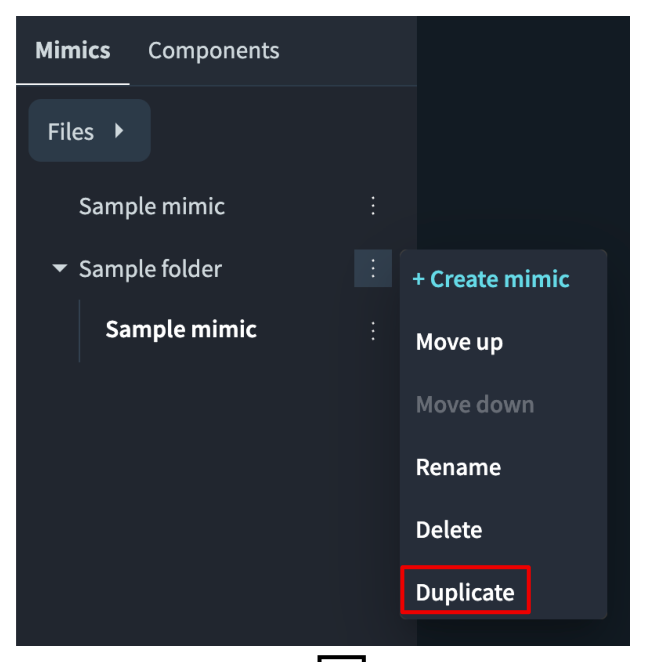
Touch the option icon of the folder.
-
Select [Duplicate].
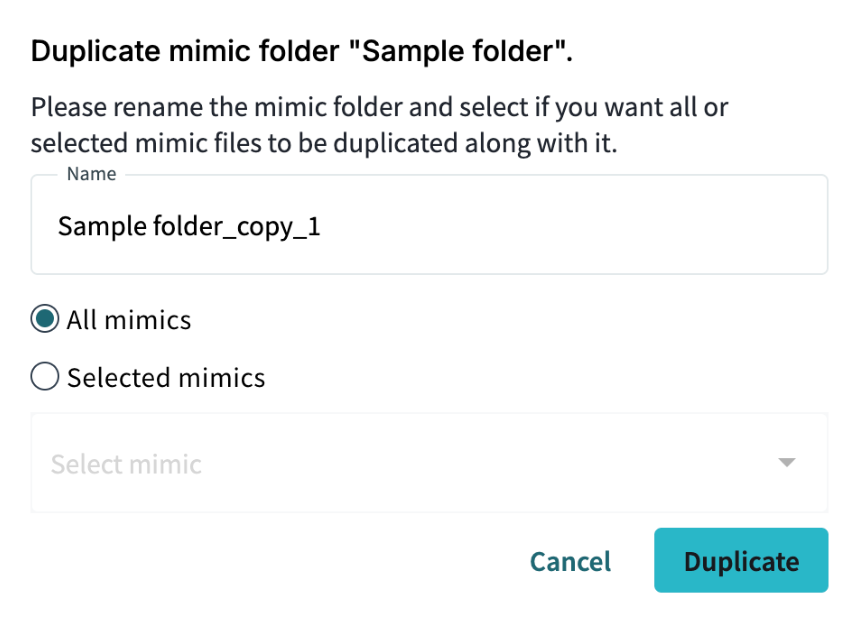
The Duplicate mimic folder window appears.
-
Enter the name of the new folder.
-
Select [All mimics] or [Selected mimics].
-
Touch the [Duplicate] button.
The folder is duplicated.
Deleting a Folder
-
Touch the option icon of the folder.
-
Select [Delete].
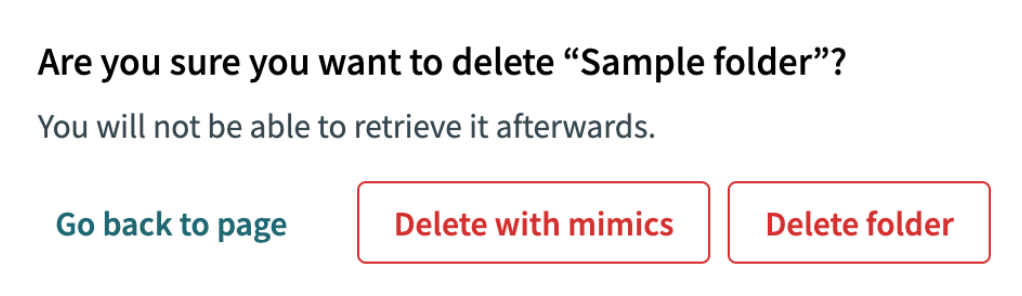
The confirmation window appears.
-
Touch the [Delete folder] button or the [Delete with mimics] button.
[Delete folder] deletes the folder and moves the mimics out of the folder.
[Delete with mimics] deletes the folder and the mimics in it.
|
A deleted folder and a deleted mimic cannot be restored. |