Creating a Vessel and Version
Overview
This section explains how to create a new vessel folder and start a new version in iCreate.
A vessel can be created from the iCreate home page or from within an existing shipyard. After creating the vessel, you can start a new version to configure and edit the vessel.
Prerequisites
Before proceeding, ensure the following requirements are met.
-
You have access to iCreate.
-
You are logged in to iCreate.
-
A shipyard has been created.
Procedure
1. Click Create New Vessel Folder
There are two ways to start creating a new vessel.
From the iCreate home page, click Create new vessel folder from the top-right corner.
Alternatively, open the required shipyard from the left-side navigation menu and sclick Create new vessel folder from the top-right corner.
2. Creating the New Vessel
The New Vessel dialog provides two options.
-
Start from the beginning — Start with a blank slate and manually enter information to tailor vessel alarm settings to specific requirements.
-
Repurpose an existing vessel folder — Duplicate the settings from an existing vessel folder to reduce configuration effort and time.
To create a new vessel manually, select Start from the beginning.
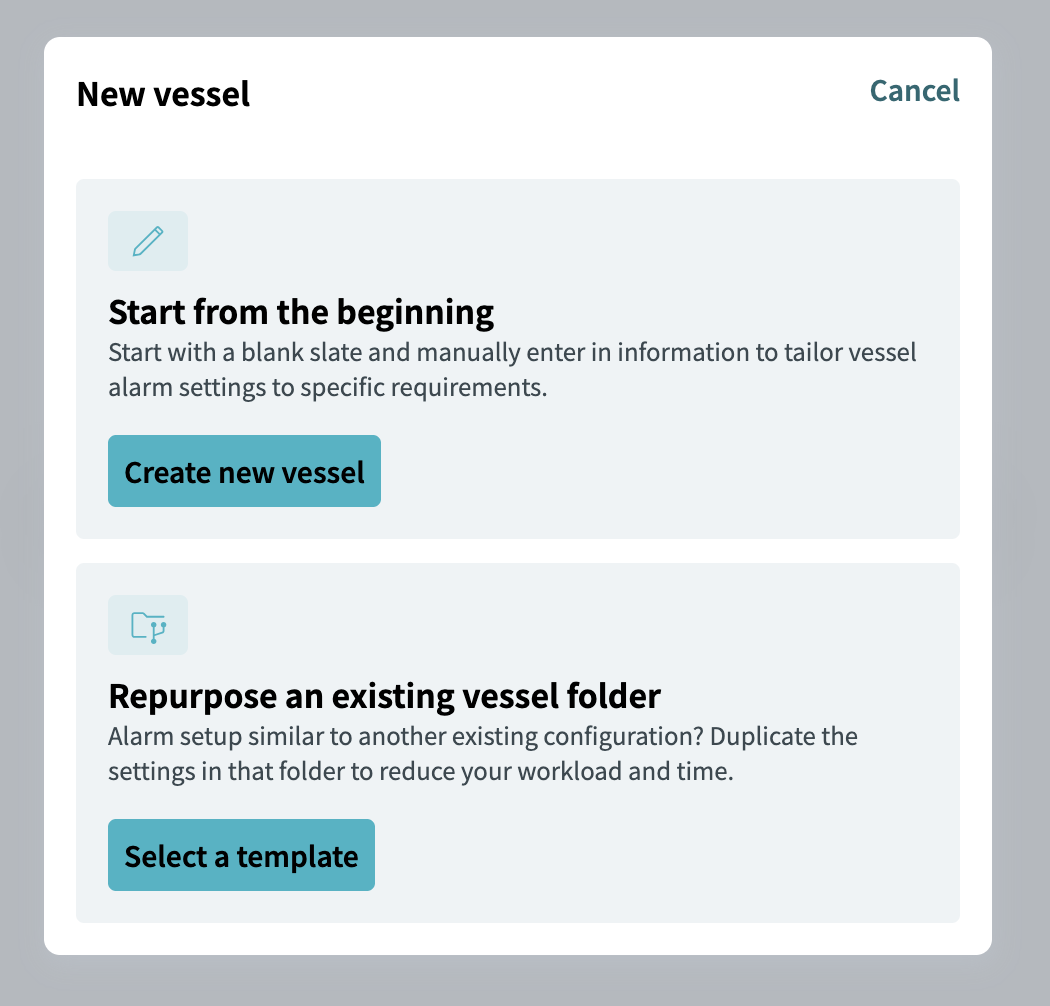
| If an existing vessel has a similar configuration, you can select a template under Repurpose an existing vessel folder to use the existing configuration as a starting point. |
3. Enter Vessel Information
The Create New Vessel form appears.
Enter the required vessel information.
Field |
Description |
Required |
Shipyard |
Select the shipyard where the vessel will be created. |
Yes |
Vessel Number |
Enter the vessel number. |
Yes |
Name |
Enter the vessel name. |
No |
Drawing ID |
Enter the drawing ID. |
Yes |
Number of OPS |
Enter the number of OPS. |
No |
Number of FCU |
Enter the number of FCU. |
No |
| Fields marked as mandatory must be completed before the vessel can be created. |
4. Create the Vessel
Review the entered information and click Create.
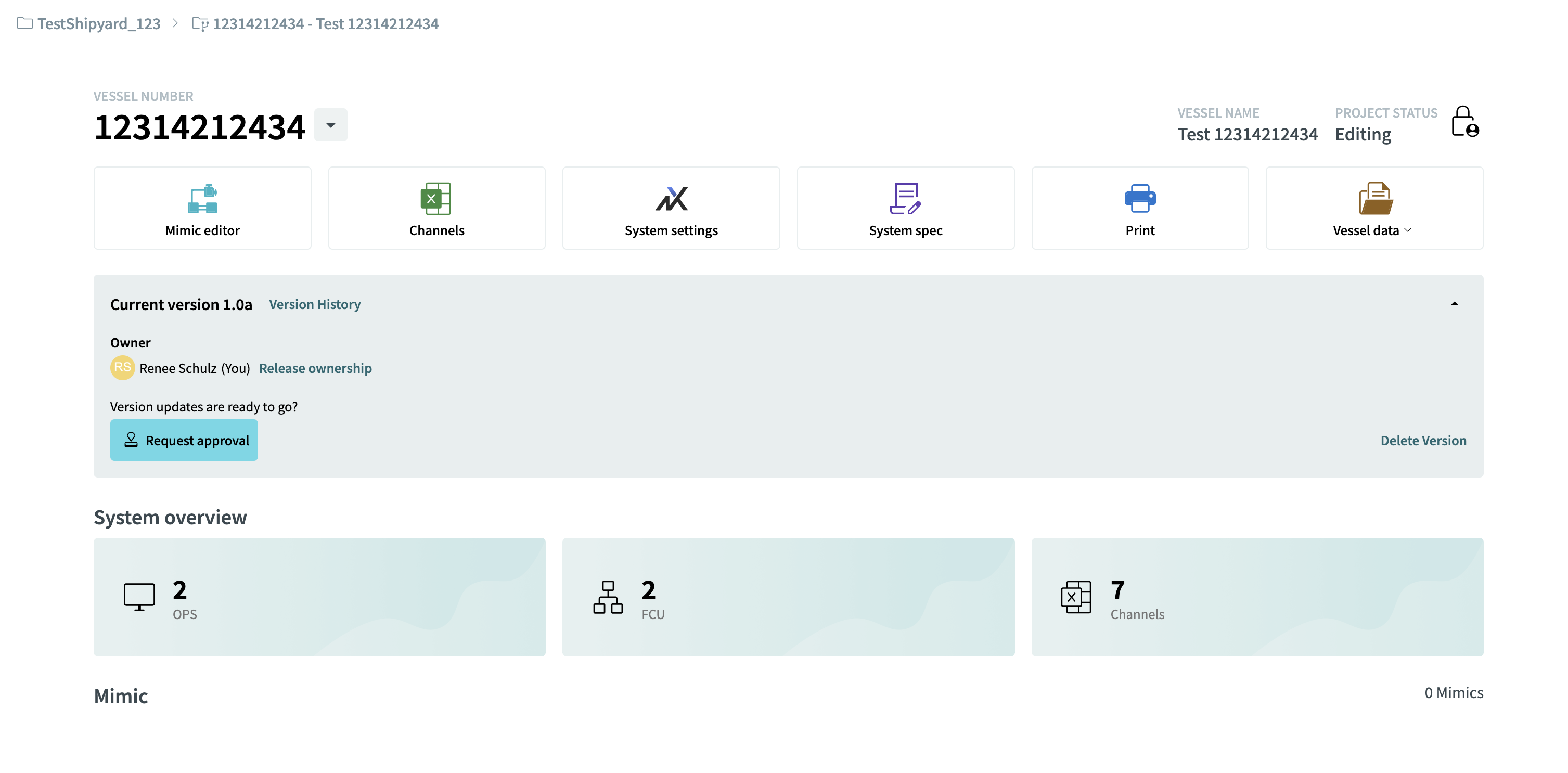
The vessel folder is created and displayed in iCreate.
5. Confirm the Vessel Folder
Open the selected shipyard.
The new vessel appears within the shipyard folder on the main screen.
The vessel is also displayed under the corresponding shipyard in the left-side navigation menu.
6. Start a New Version
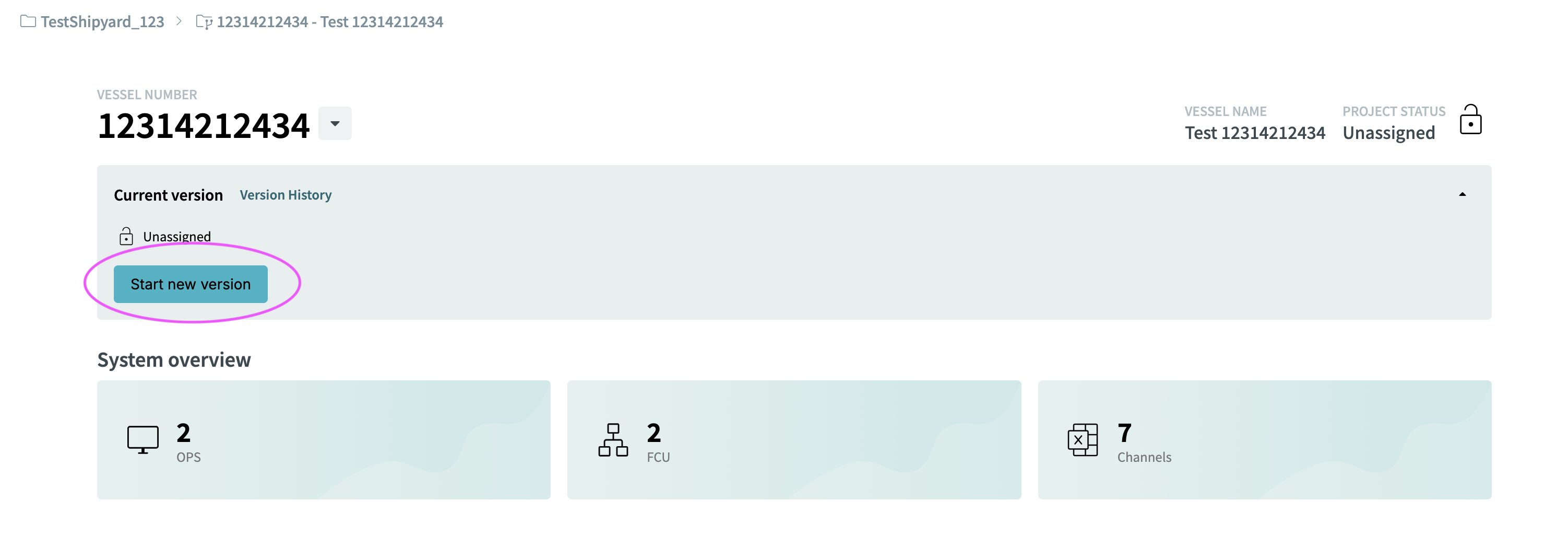
Open the newly created vessel and select Start New Version.
A New Version dialog appears with information about the version creation process.
The dialog explains that iCreate will guide you through a series of questions to configure the new version, including a recommended version number.
Select Start to begin.
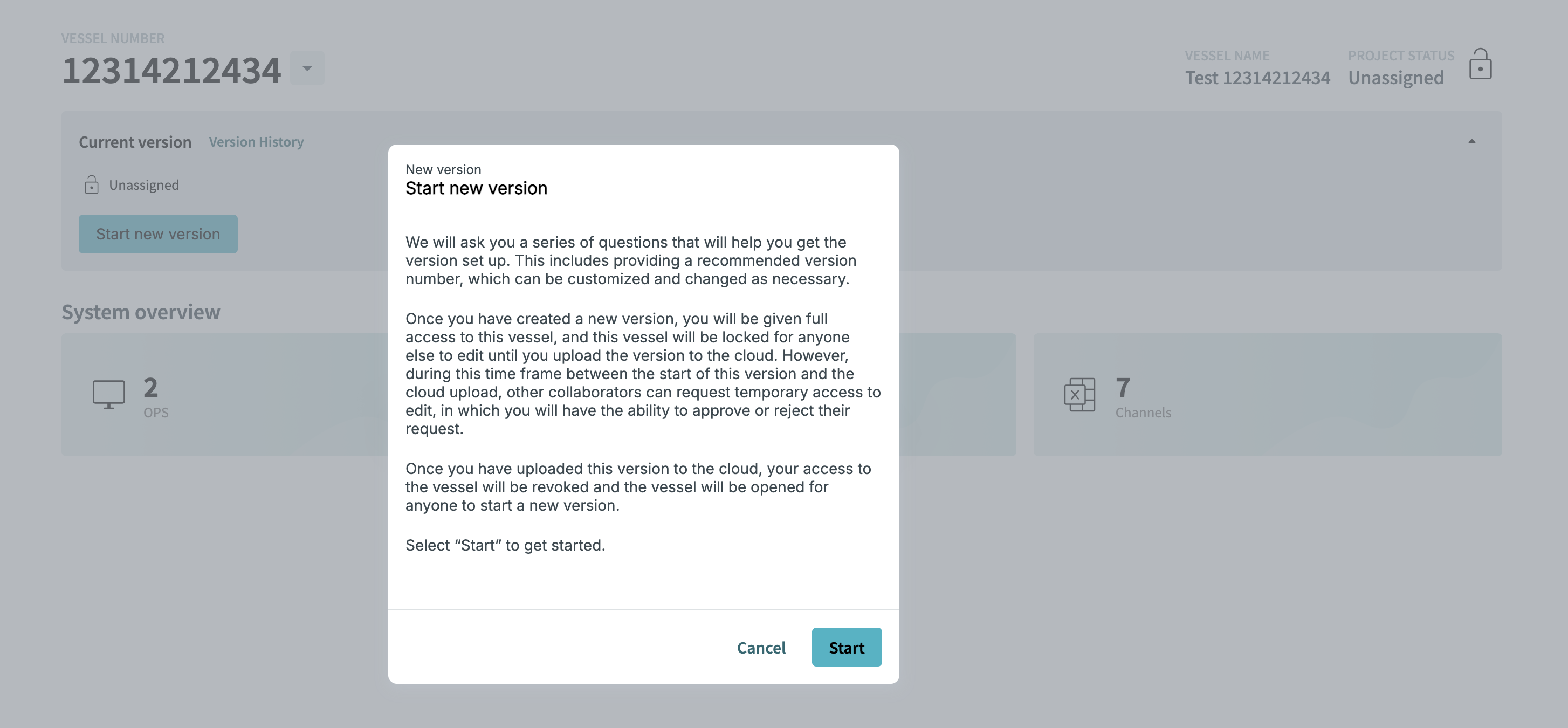
| Starting a new version gives you full access to edit the vessel. The vessel is locked for other users until the version is uploaded to the cloud. |
During this period, other collaborators can request temporary access to edit the vessel. You can approve or reject these access requests.
After the version is uploaded to the cloud, your access to the vessel is revoked and the vessel becomes available for another user to start a new version.
7. Specify Main OPS Configuration Updates
The first question asks whether you plan to update the main OPS configuration.
Select Yes if you plan to make any of the following changes:
Update channel settings. Add or delete a mimic or graph file. Change the design or settings of a mimic or graph file.
Select No if none of these changes are planned.
Select Continue to proceed.
image:newVersion2.png
| This question helps iCreate determine the type of changes planned for the new version. |
8. Specify Whether the Version Is a Trial Run
The second question asks whether the new version is a trial run.
Select Yes, let’s do a trial run if you want to test the planned update before releasing it to the cloud.
Select No, updates will be final if the changes are intended to be final.
Select Continue to proceed.
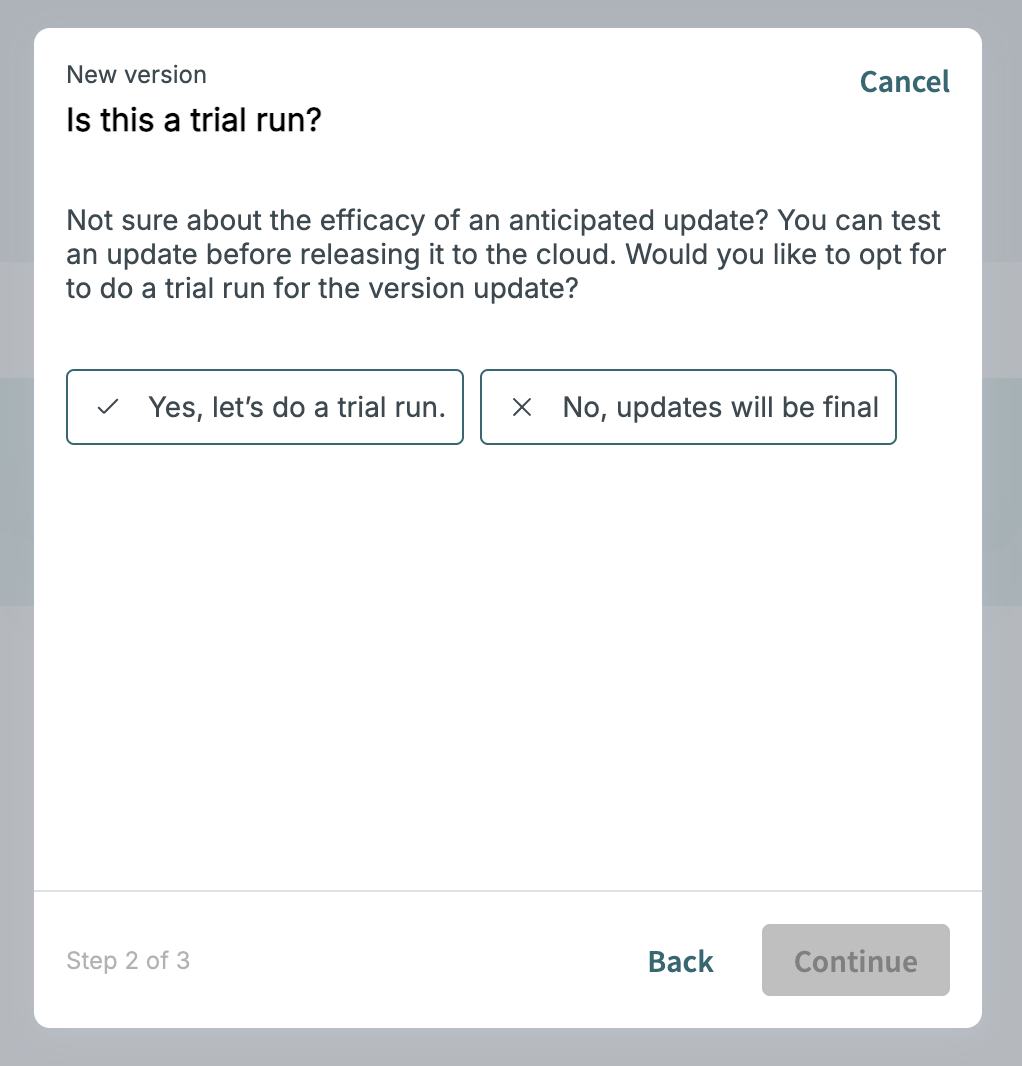
| Use a trial run when you want to test an anticipated update before releasing it to the cloud. |
9. Review the Version Number
The third step displays a recommended version number based on the information provided.
For example, iCreate may recommend 1.0a.
Review the recommended version number.
If the recommended number does not meet your versioning requirements, select Customize version number instead and enter the required version number.
| iCreate automatically recommends a version number based on the information provided during the previous steps. |