
Version Approval and Cloud Upload
Prerequisites
Before proceeding, ensure the following requirements are met.
-
You have access to iCreate.
-
You are logged in to iCreate.
-
You have created a vessel and version.
-
You have completed the version configuration and are ready to approve it for cloud upload.
-
You have the necessary permissions to approve versions and upload them to the cloud.
-
You have a stable internet connection for the cloud upload process.
-
You have verified that the version is complete and meets all required specifications before approval.
-
You have reviewed any relevant documentation or guidelines for version approval and cloud upload in your organization.
-
You have checked for any pending changes or updates that need to be incorporated into the version before approval.
-
You have confirmed that all necessary approvals from stakeholders or project leads have been obtained before proceeding with the version approval and cloud upload.
-
You have ensured that the version adheres to any relevant industry standards or regulations before approval and upload.
-
You have the ownership of the vessel and the version to be approved and uploaded to the cloud.
Procedure
1. Request approval
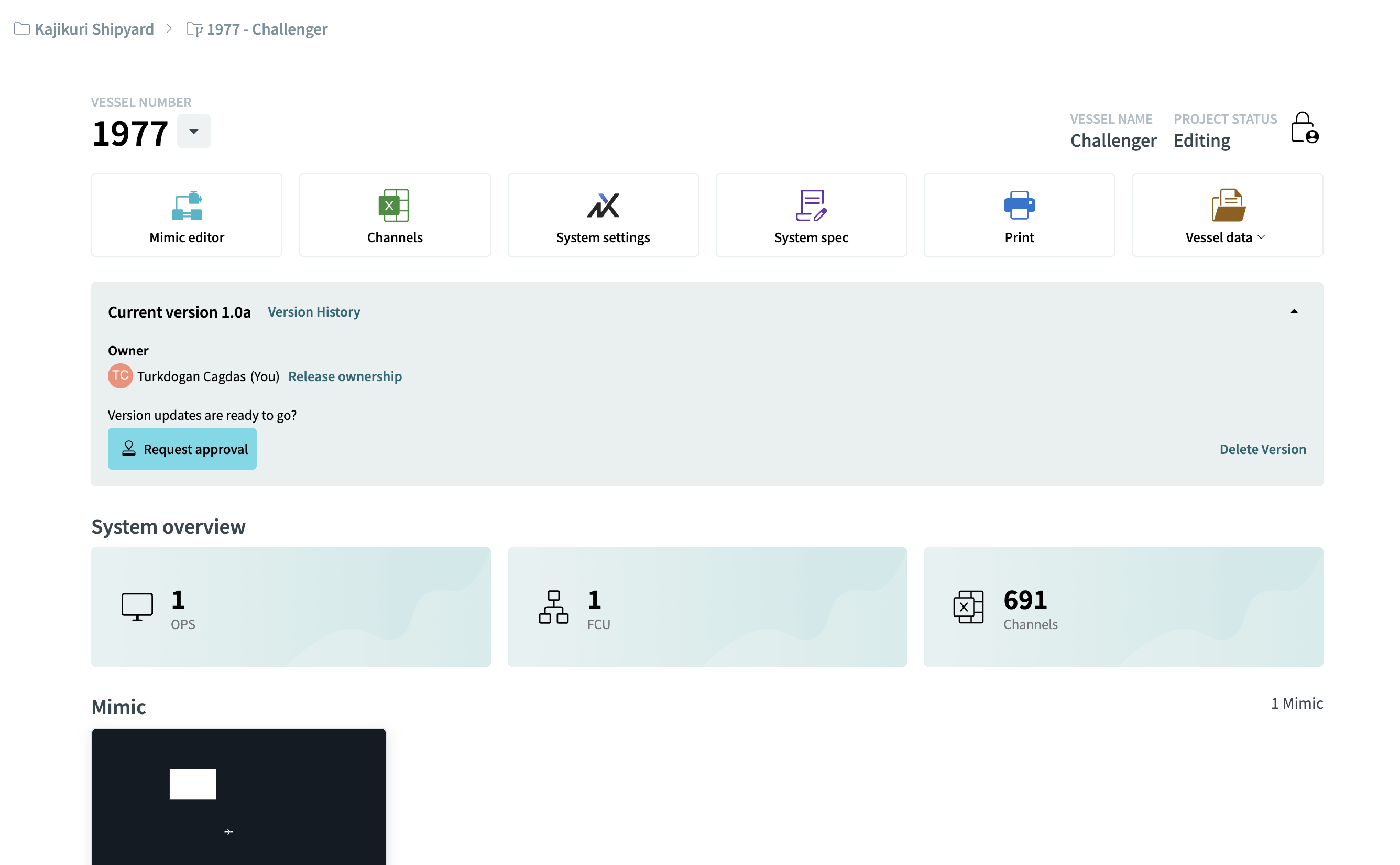
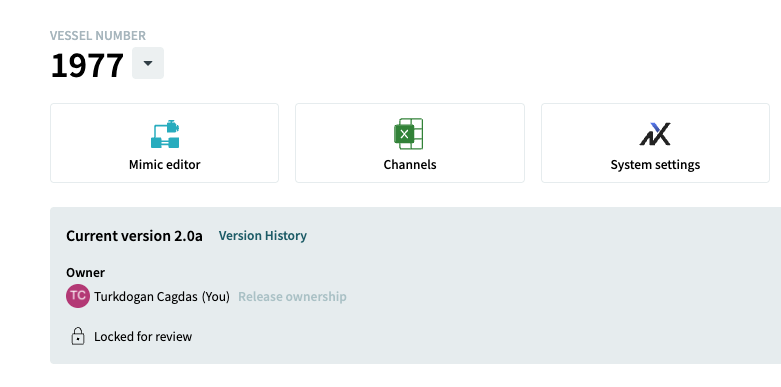
Once editing is complete, the changes must be approved by another person, typically the user’s supervisor. Make sure that you have the ownership and then click Request Approval to submit the changes for review.
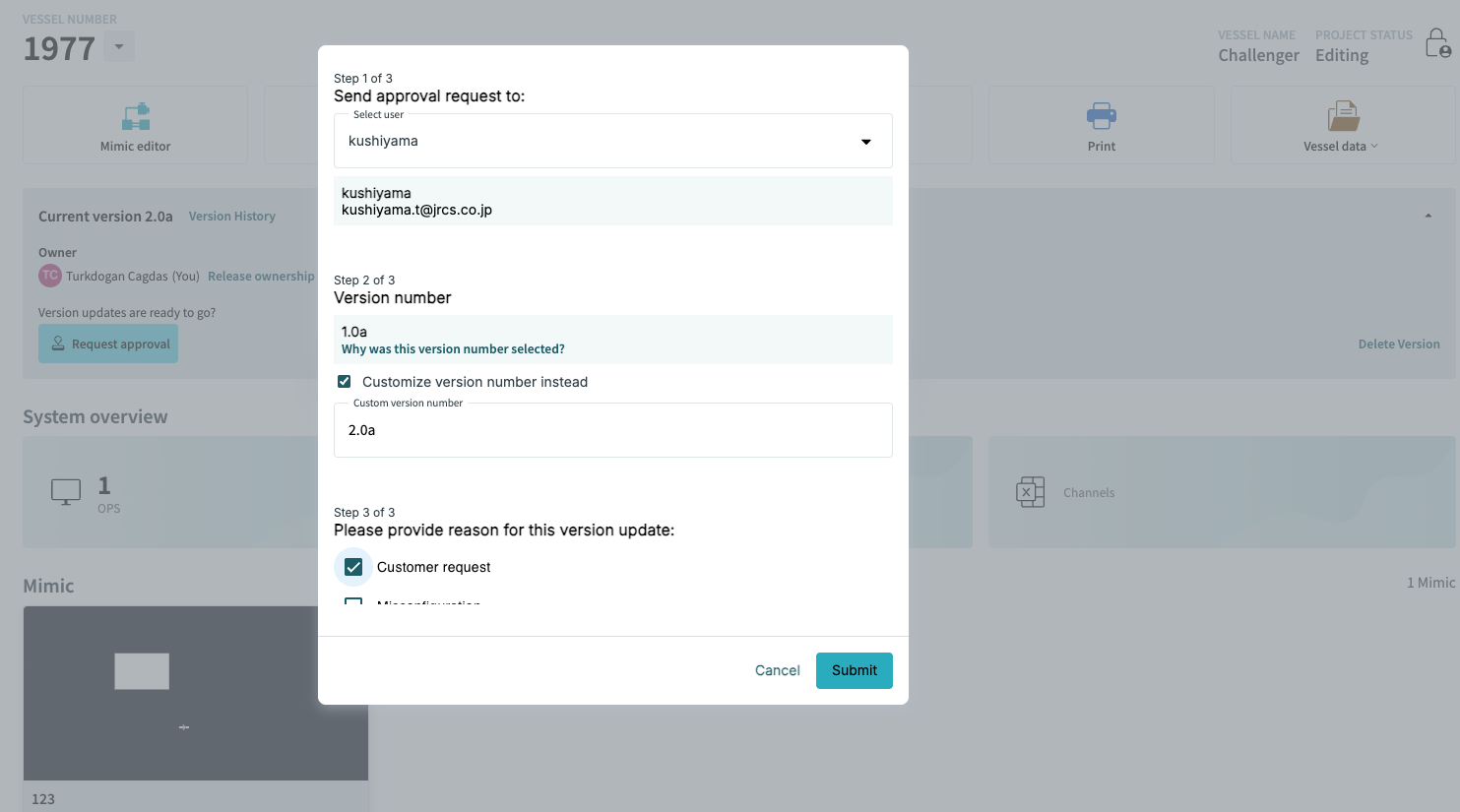
From Request Approval, select the approver, version number, and enter the reason why the changes were made such as Customer request, Misconfiguration, Internal Request or other. Then click Submit.
2. Review the approval request
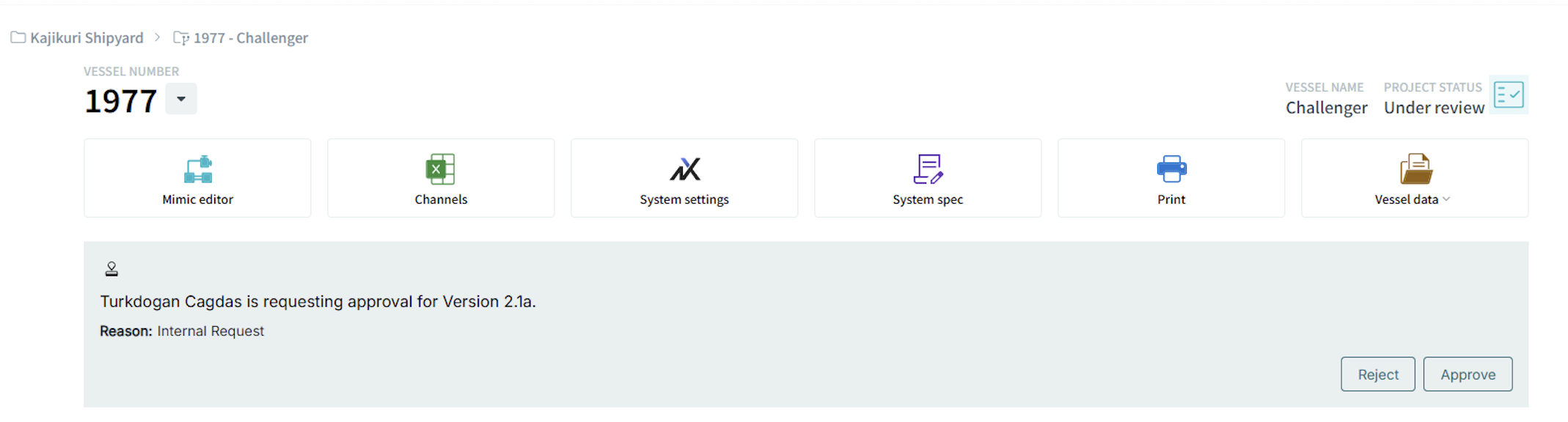
iCreate sends an email notification to the approver informing them that a review has been requested. A similar notification also appears on the screen when the approver opens the Recent page in iCreate.
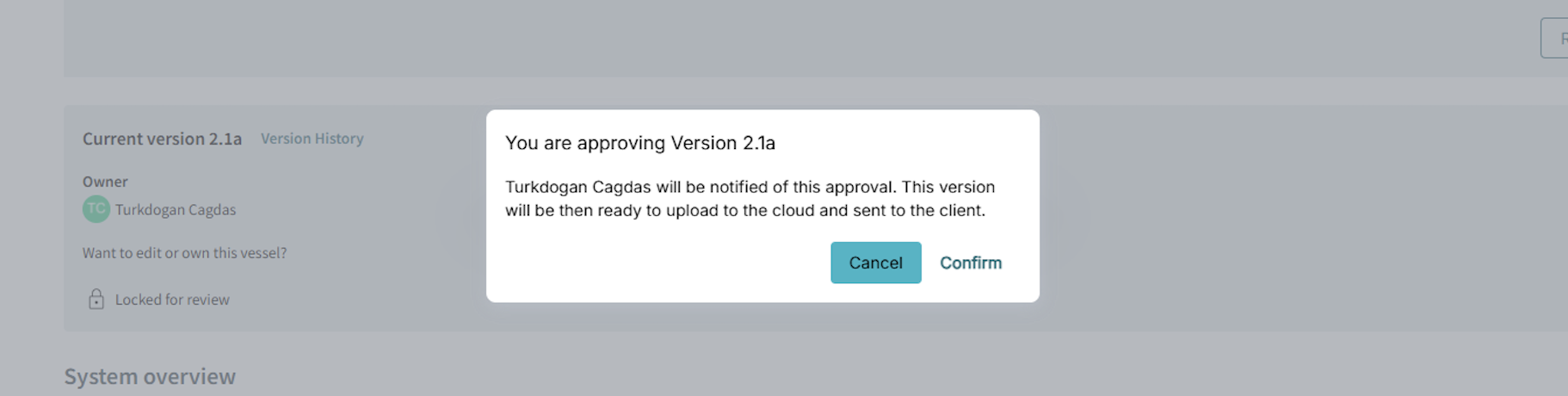
The approver reviews the changes and selects Approve if everything is acceptable.
3. Withdraw the approval request
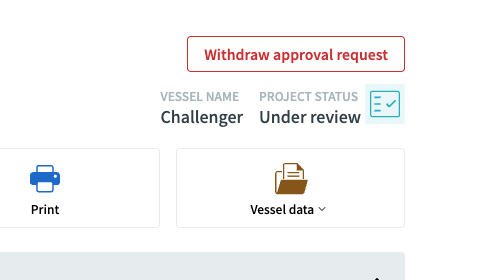
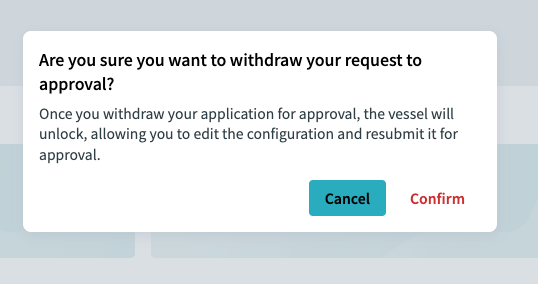
If approval was requested by mistake, or if additional modifications are required after the request has been submitted, the approval process can be withdrawn.
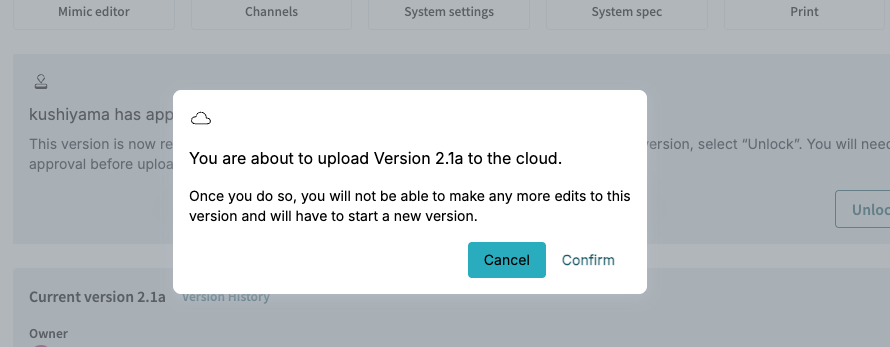
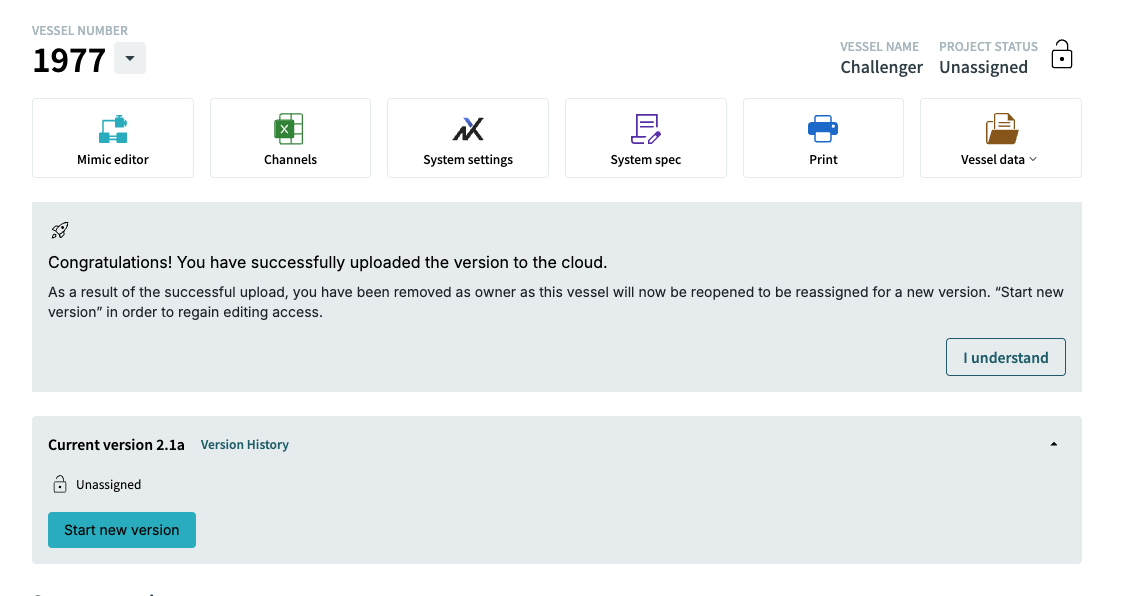
6. Version History
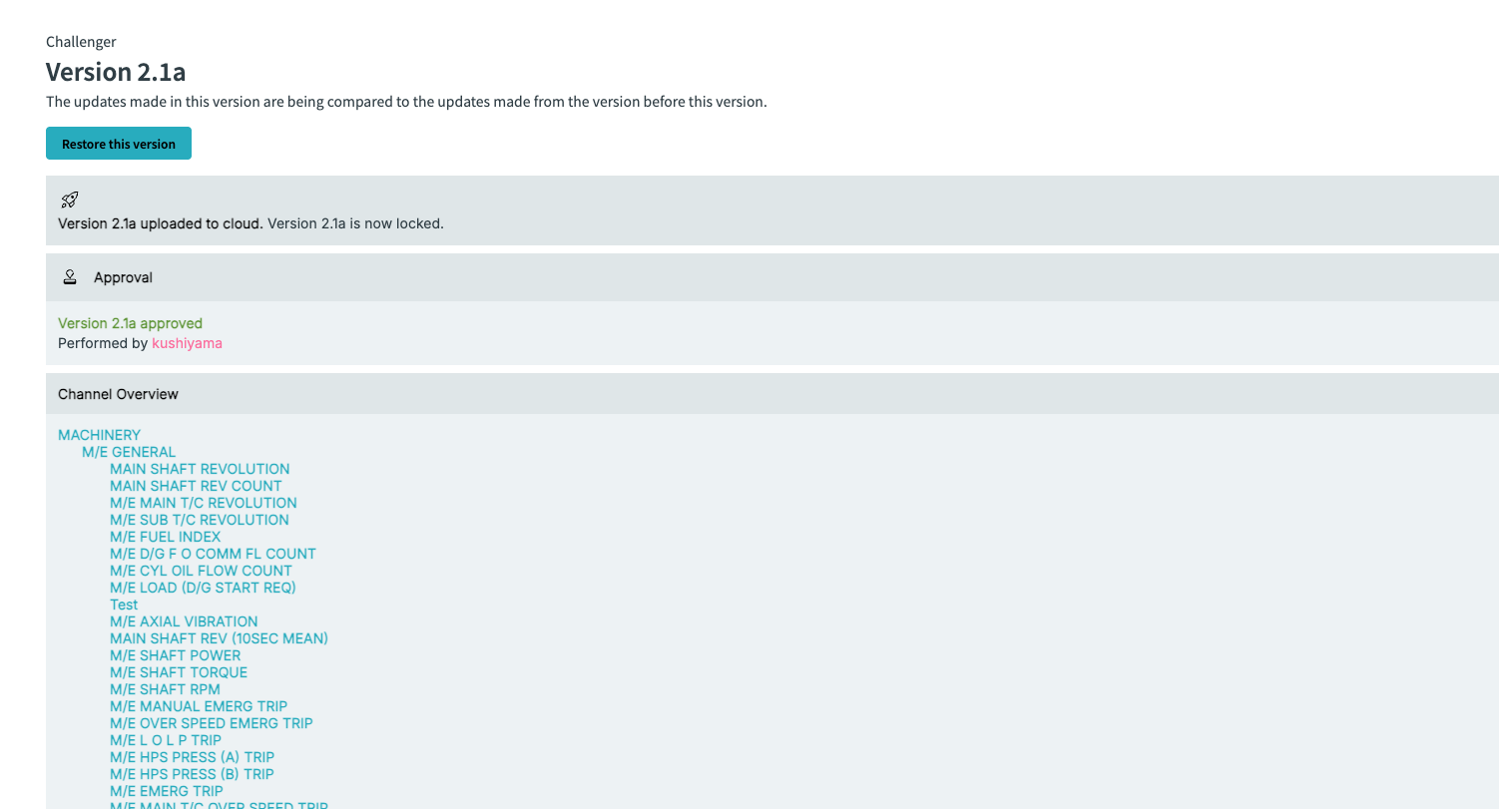
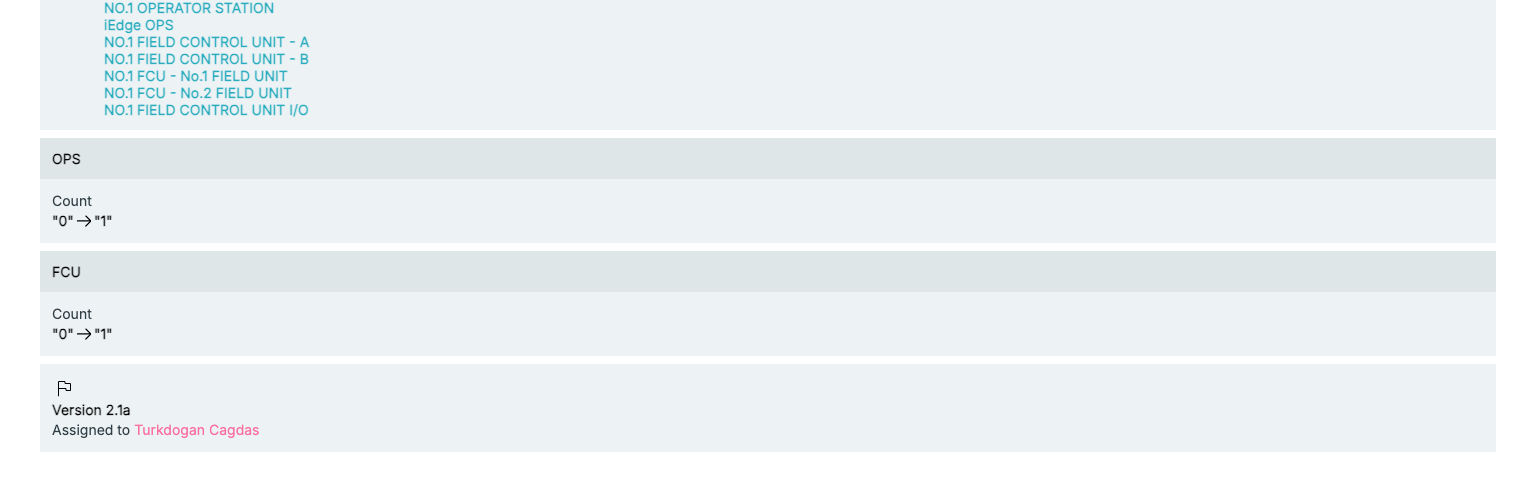
Click Version History to view the history of the version, including the approval status, cloud upload status, the updates and the owner who uploaded the approved data.
|
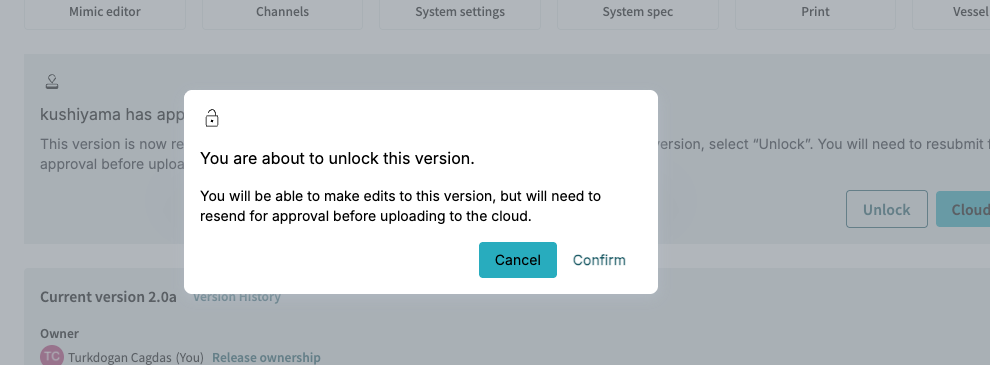
It is possible to make further updates to the version after it has been approved and uploaded to the cloud by clicking Start new version. However, any changes made after approval will require a new approval process to be initiated before the updated version can be uploaded to the cloud again. This ensures that all modifications are reviewed and approved by the appropriate personnel before being made available in the cloud. |