4.4 EAP
4.4.1 Navigate to EAP settings.
Navigate to the EAP settings by clicking the [ > ] button next to "EAP" under System settings.
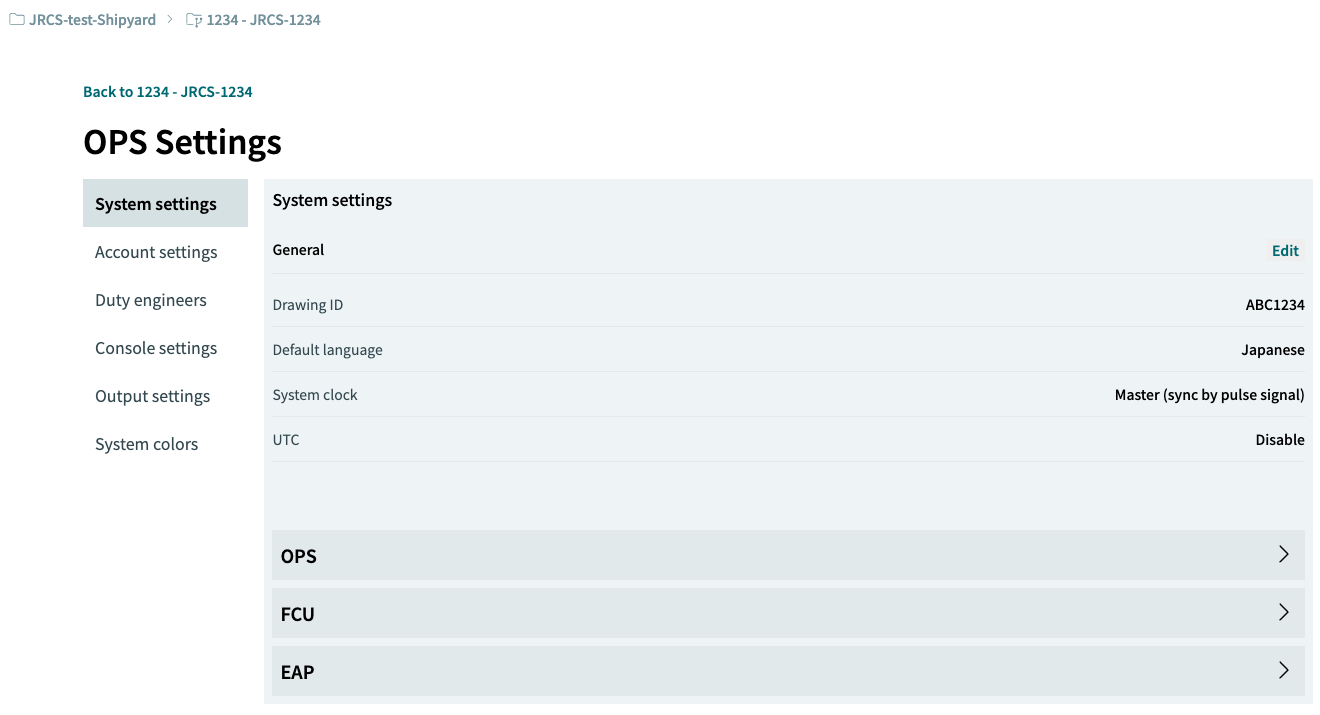
4.4.2 Selecting an EAP
Use the three-dot […] button for the specific EAP to perform [ Duplicate / Delete ] actions.
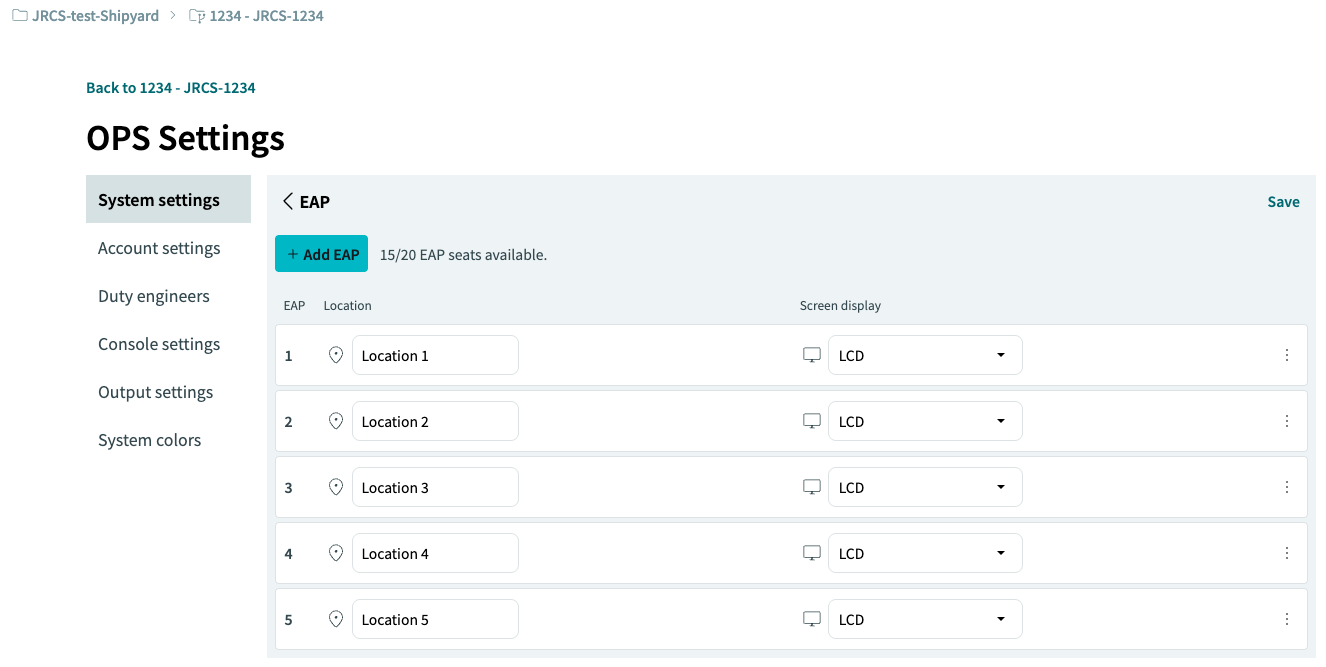

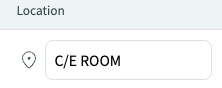
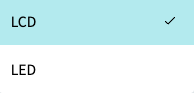
4.4.5 Duplicating an EAP

Use this to copy the selected EAP.
Select [Duplicate] from the three-dot […] button menu.
4.4.6 Deleting an EAP

Use this to delete the selected EAP.
Select [Delete] from the three-dot […] button menu.
4.4.7 Finishing editing
To save your edits, click the [save] button in the top-right corner.
If there are no changes, the [save] button in the top-right corner will be disabled.

If you attempt to return to the previous page using the [ < ] button after making changes,
a confirmation pop-up window will appear, asking whether to save the settings.
[ Discard changes / Save changes ]